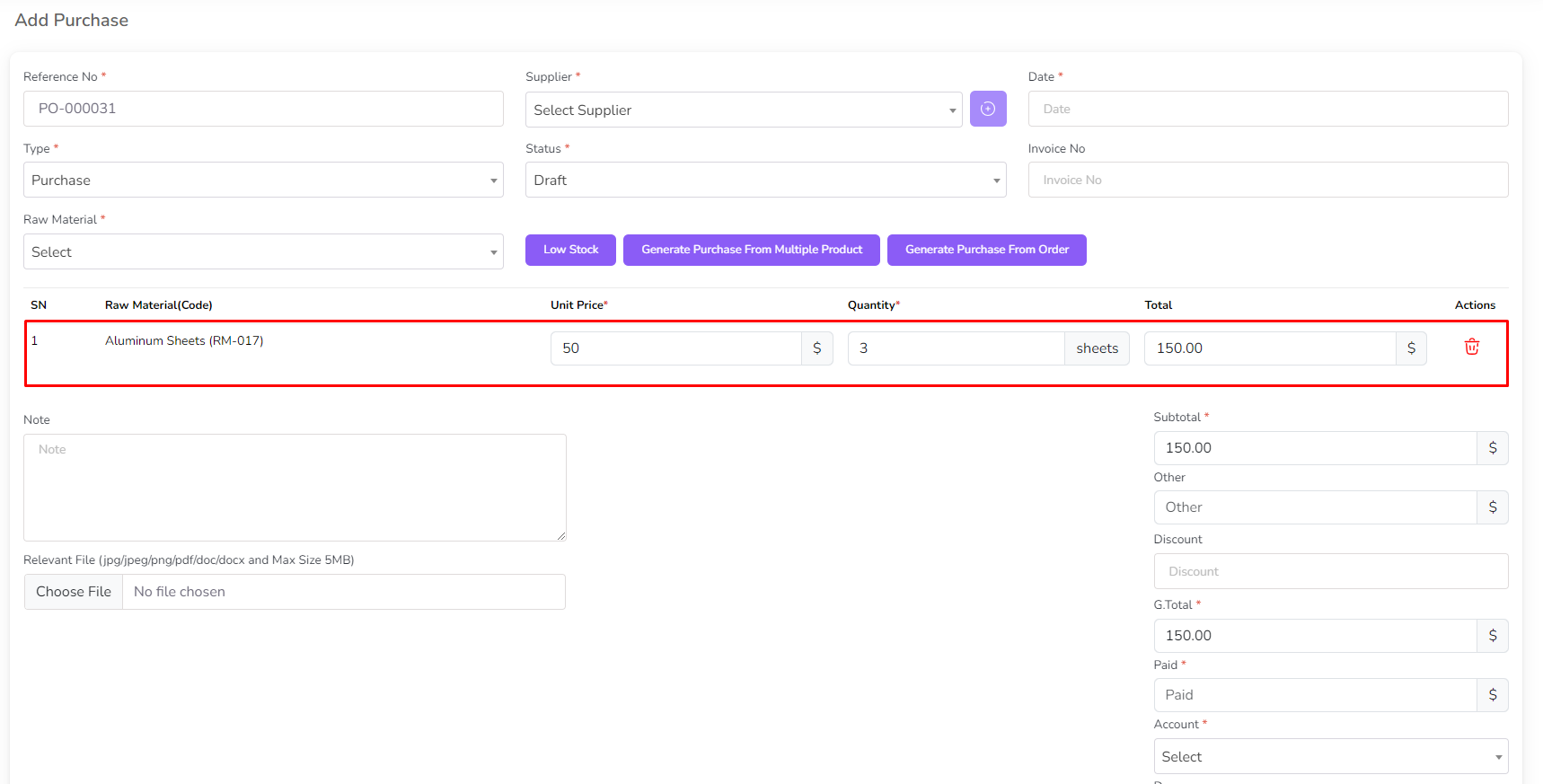
Adding a Purchase
- Go to the Purchase menu from the left sidebar.
- Click on Add Purchase.
- Note: Purchases have two types:
- Purchase Order: Does not affect stock.
- Purchase: Affects stock.
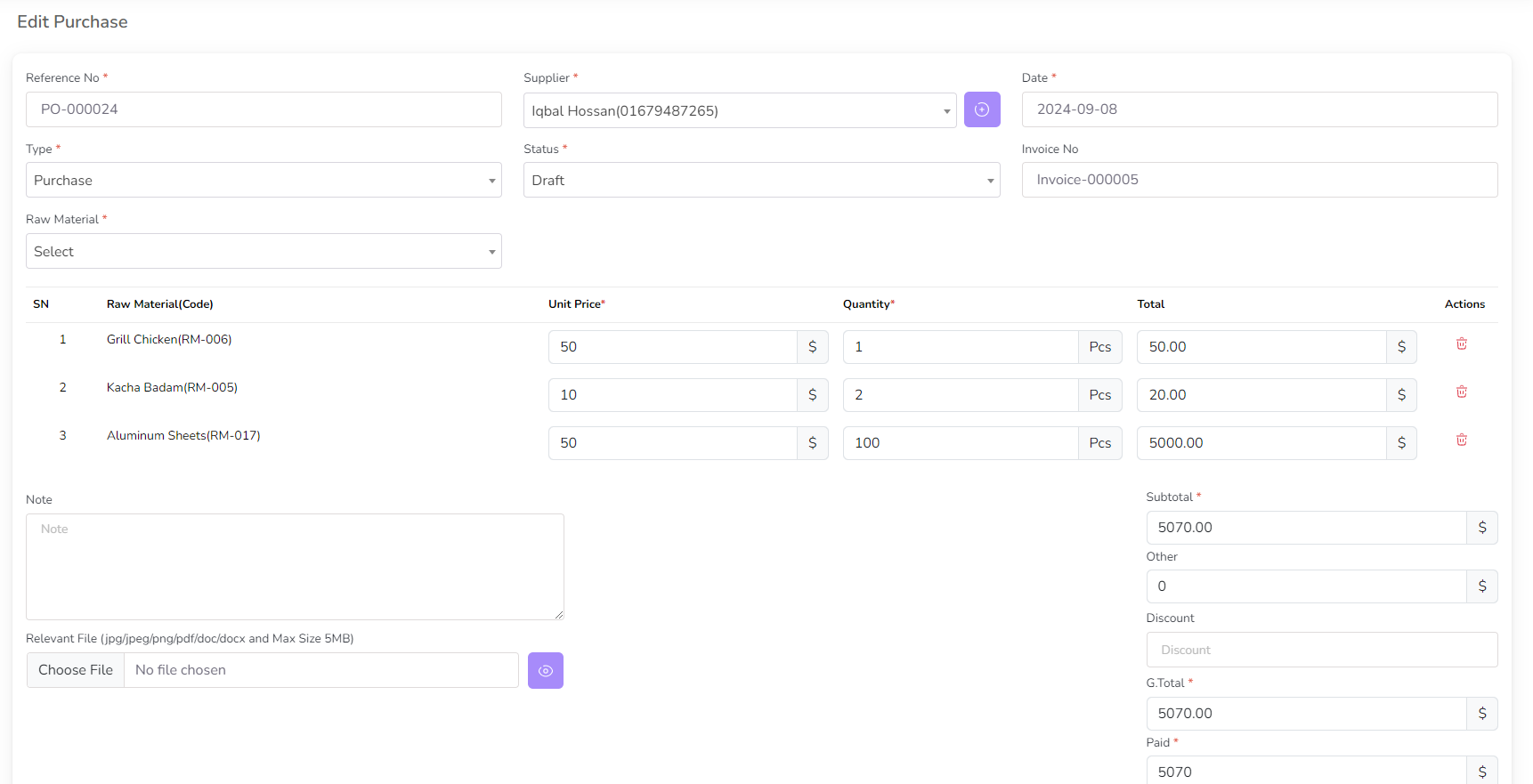
- Select a raw material from the dropdown. A modal will appear with its rate.
- Enter the quantity and click Add to Cart.
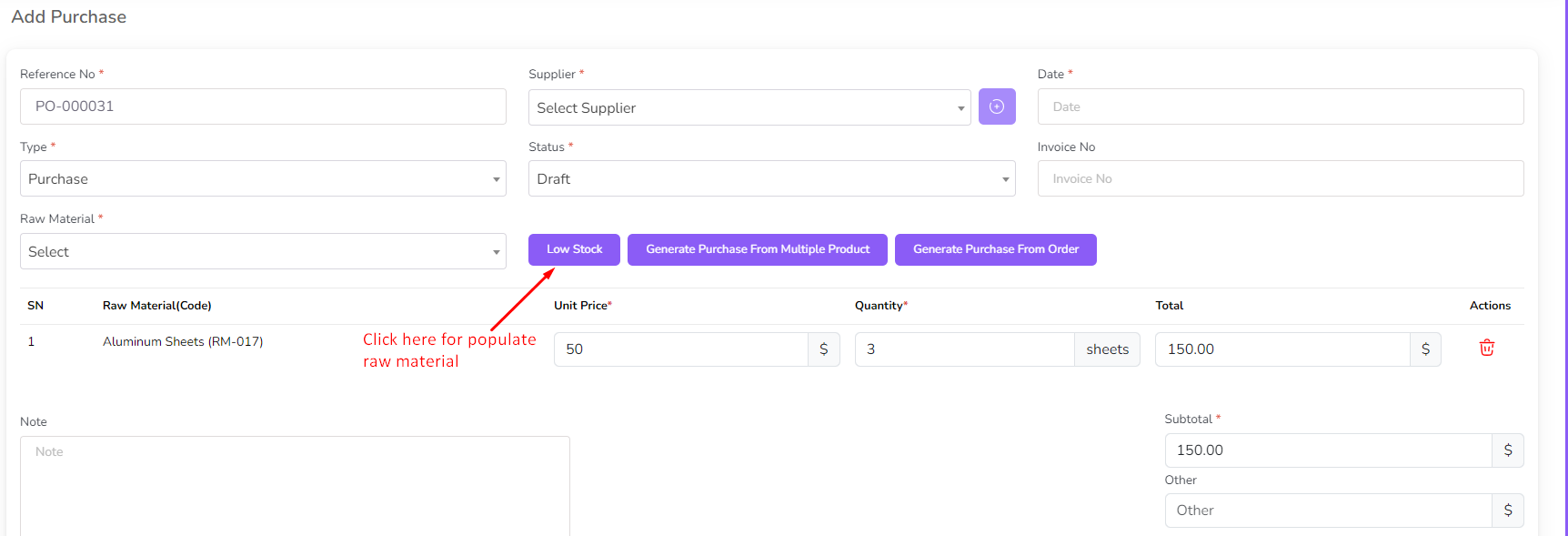
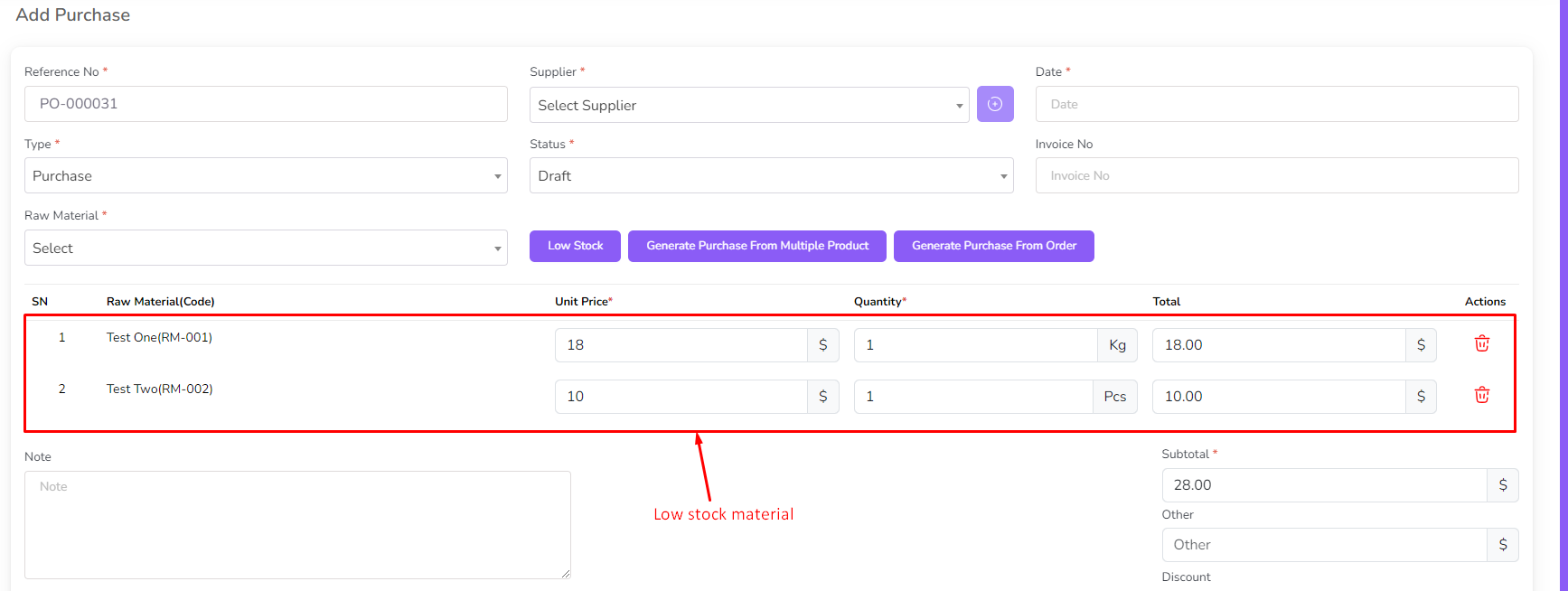
- If a material is low in stock, click Low Stock to add it automatically.
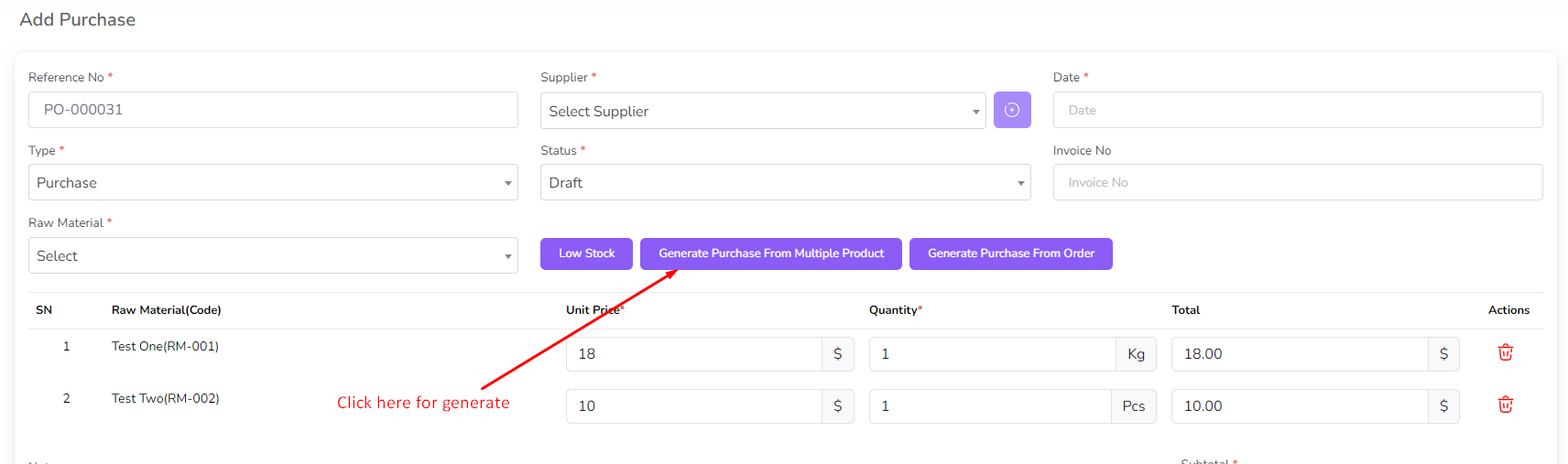
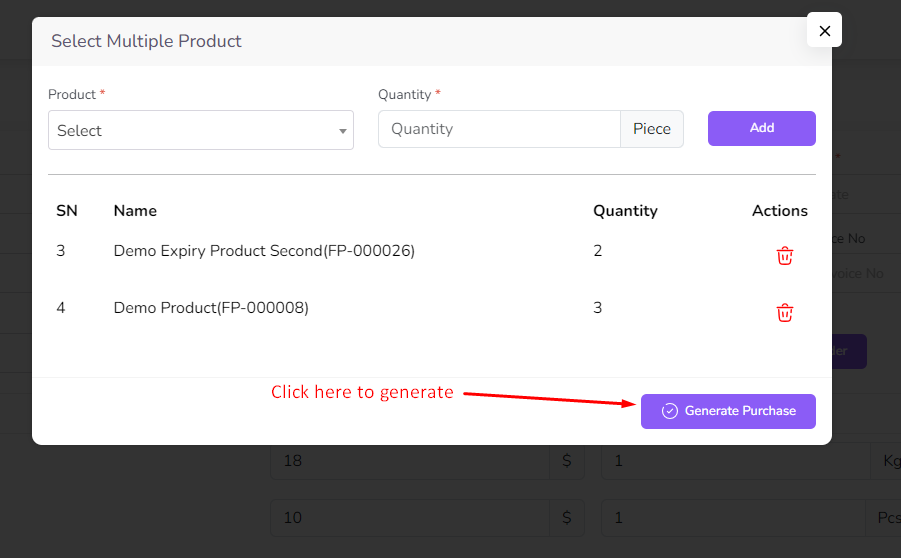
- To generate a purchase from multiple products, click Generate Purchase from Multiple Products.
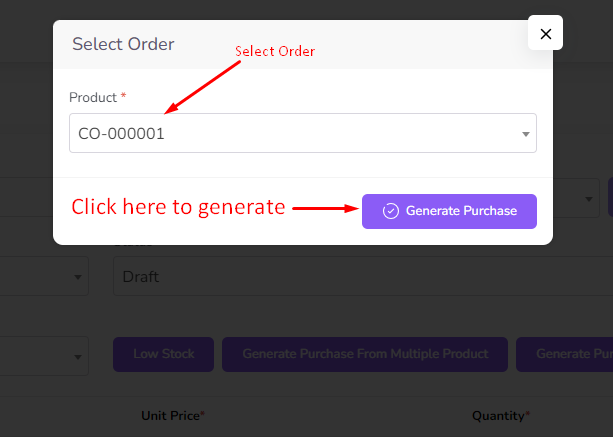
- To generate a purchase from an order, click Generate Purchase from Order.
- After adding materials, click Submit to finalize the purchase.
Managing Purchases
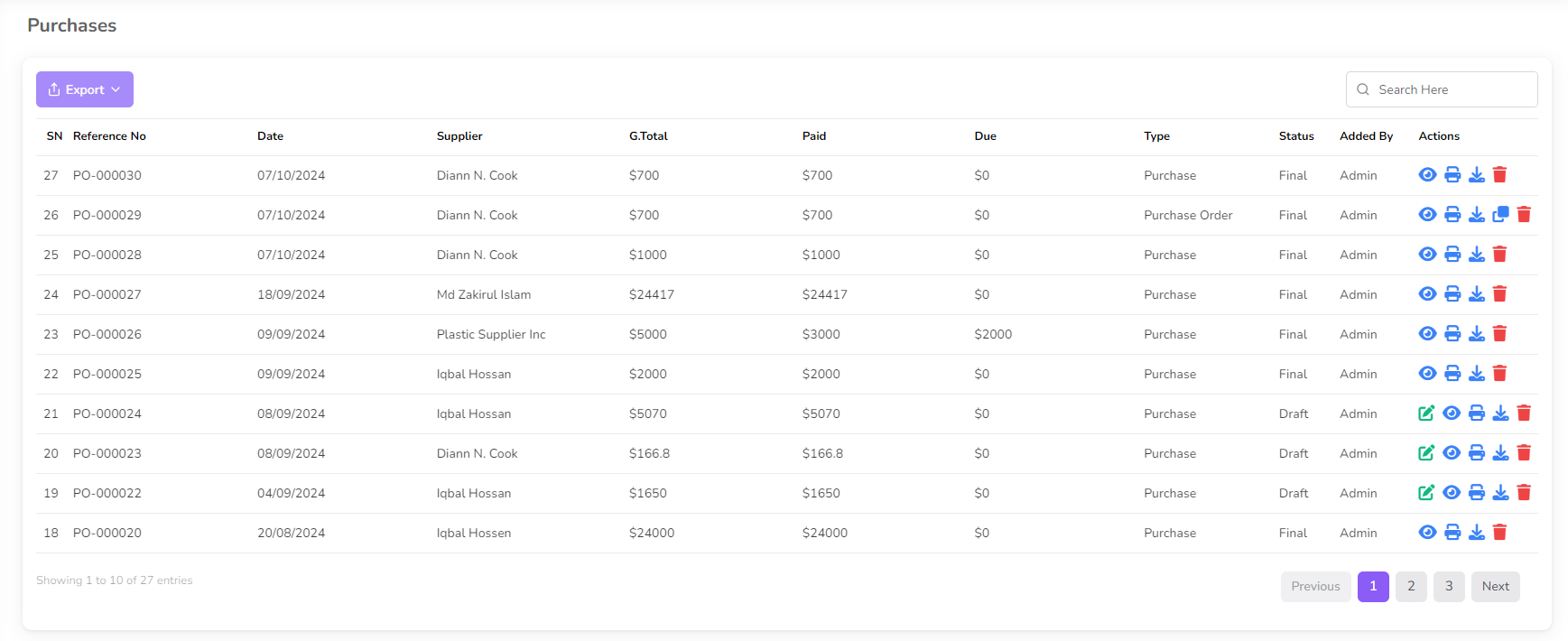
- Edit Purchase: Click the Edit icon (not available if the purchase status is Final).
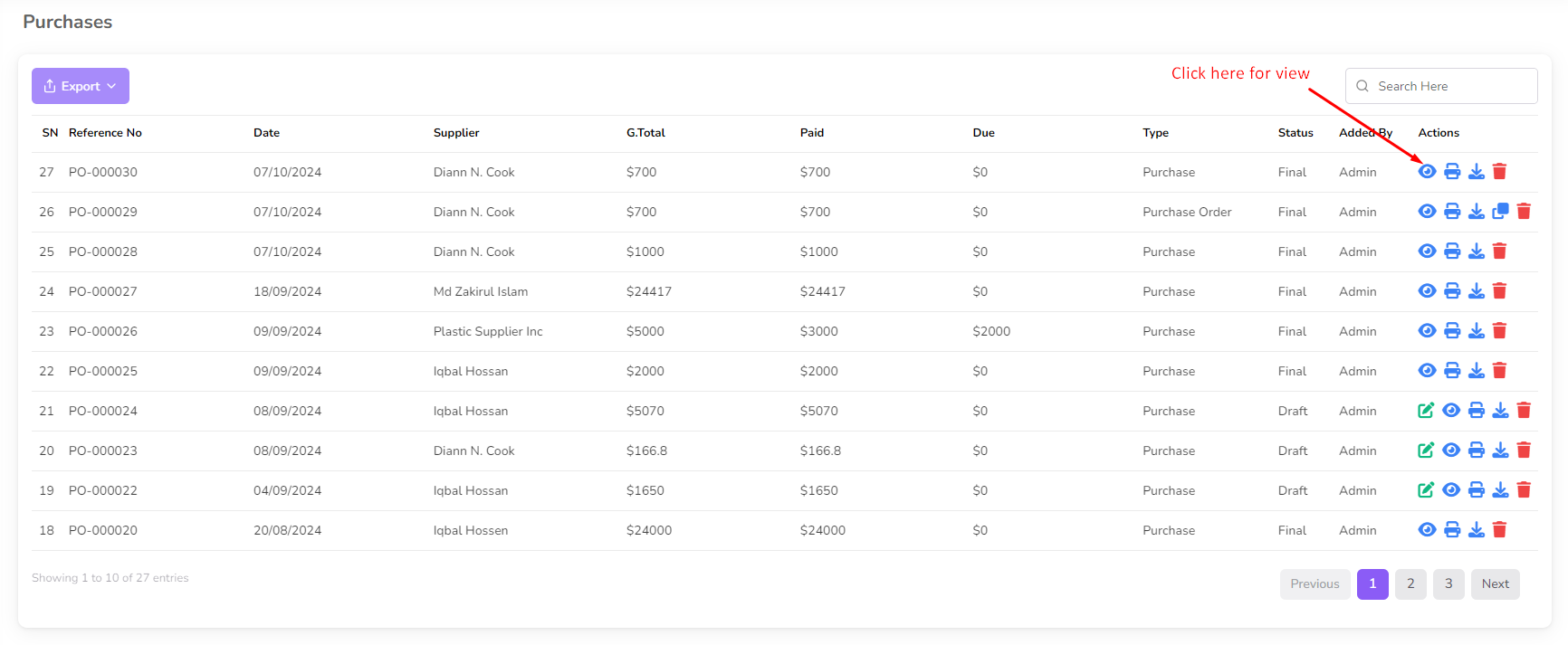
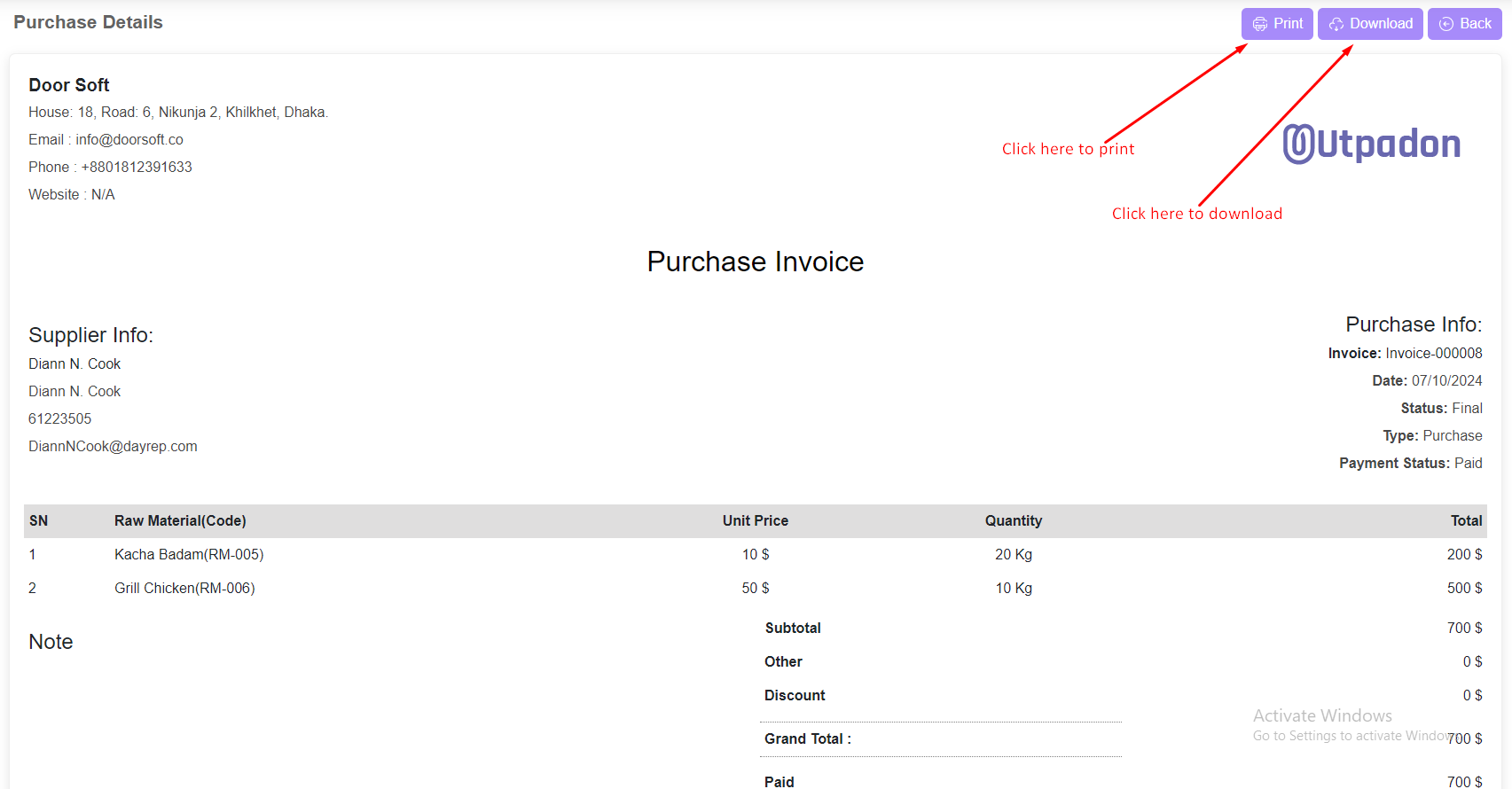
- View Purchase Details: Click the View icon.
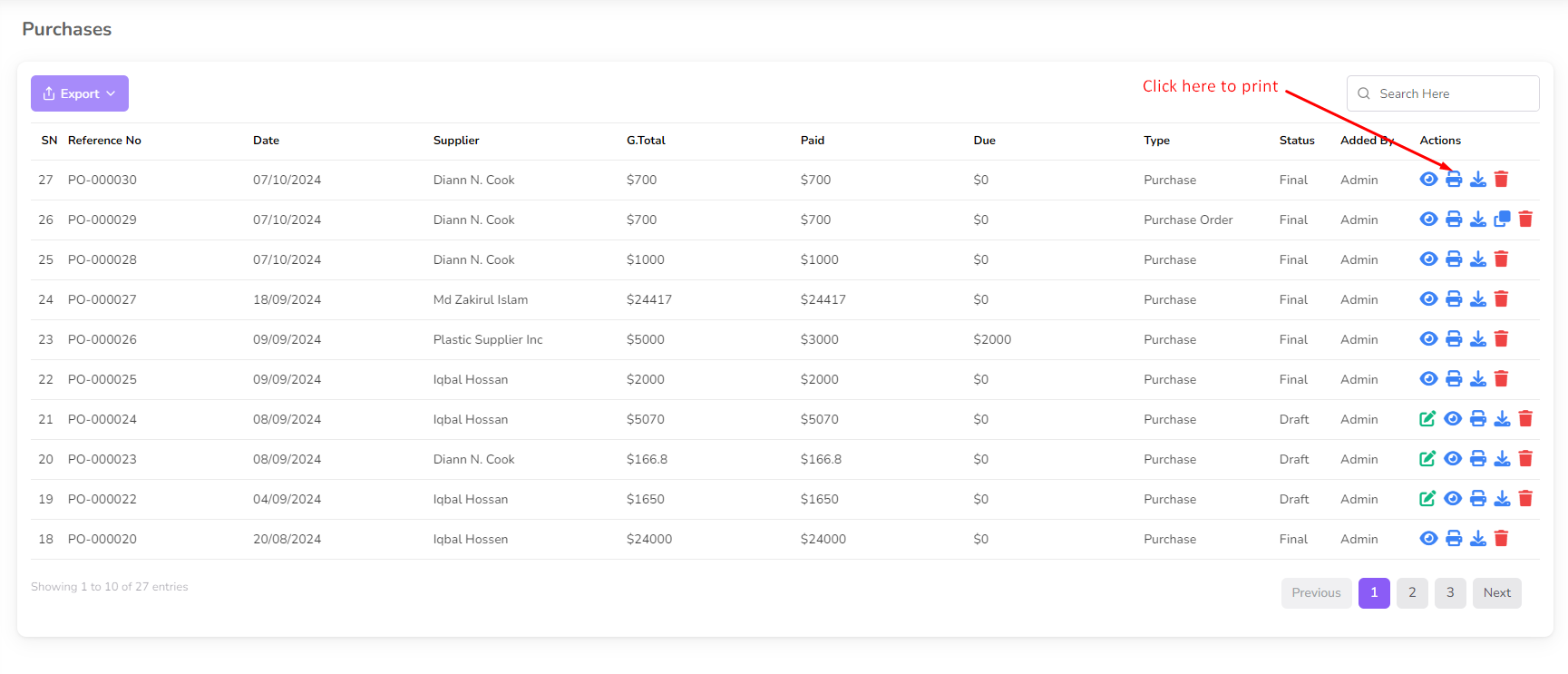
- Print Invoice: Click the Print icon.
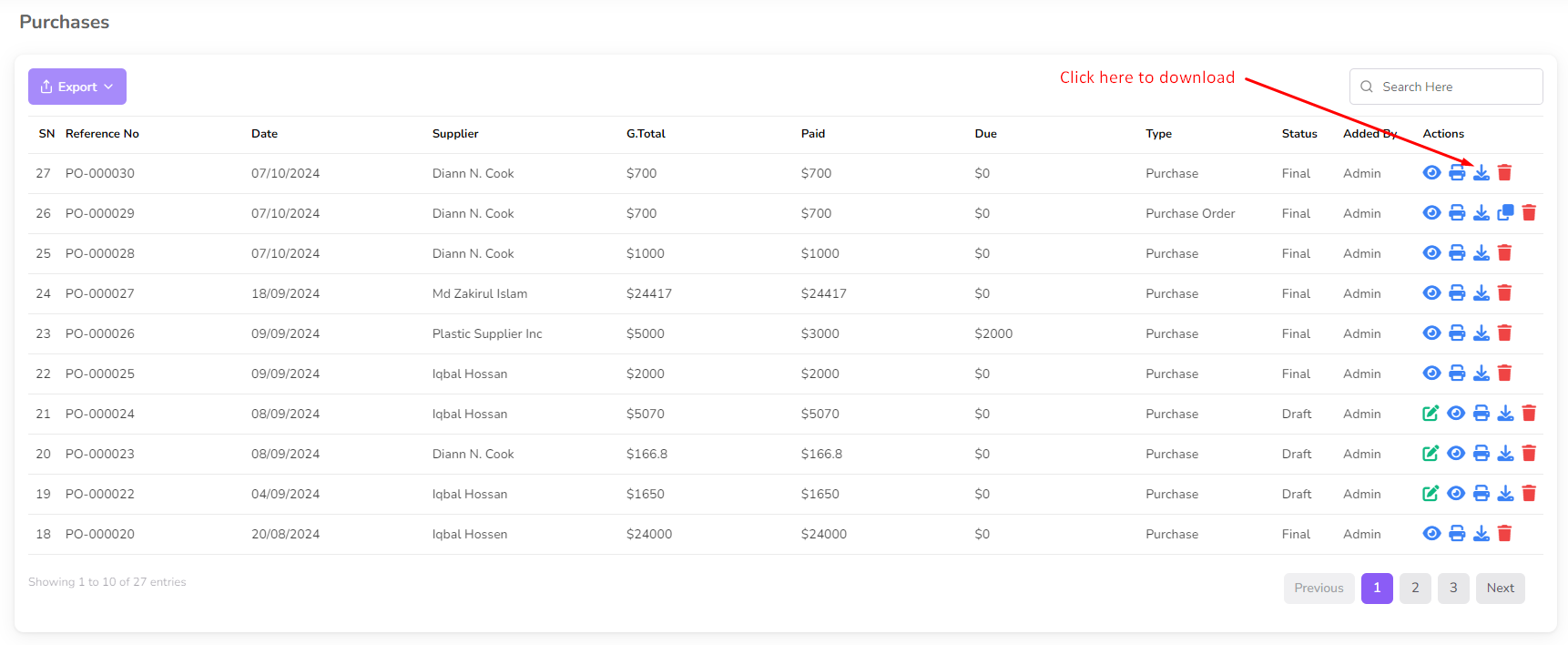
- Download Invoice: Click the Download icon.
- Convert Purchase Order to Purchase: Click Convert to Purchase.
- Delete Purchase: Click the Delete icon.
Parties
The Parties section allows you to manage customers and suppliers.
Customers
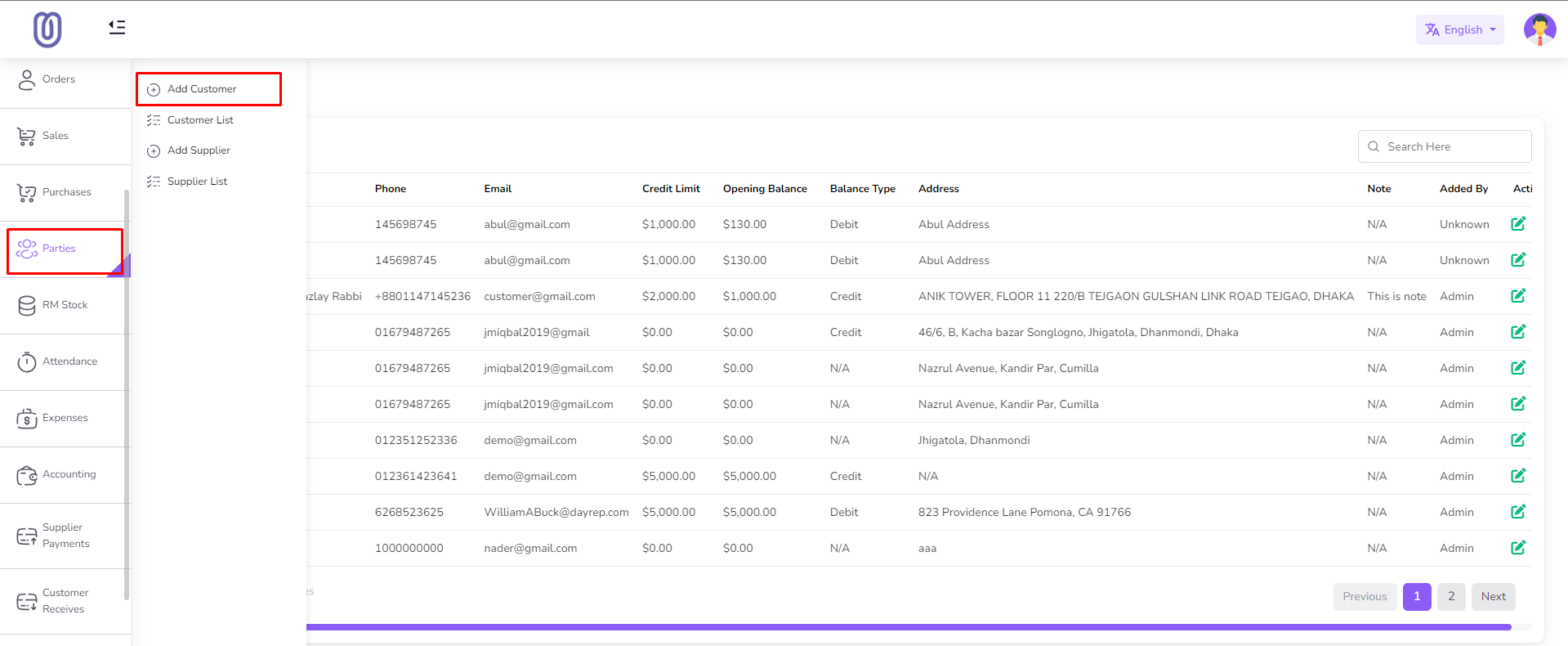
- Navigate to the Parties menu from the left sidebar.
- Click Add Customer.
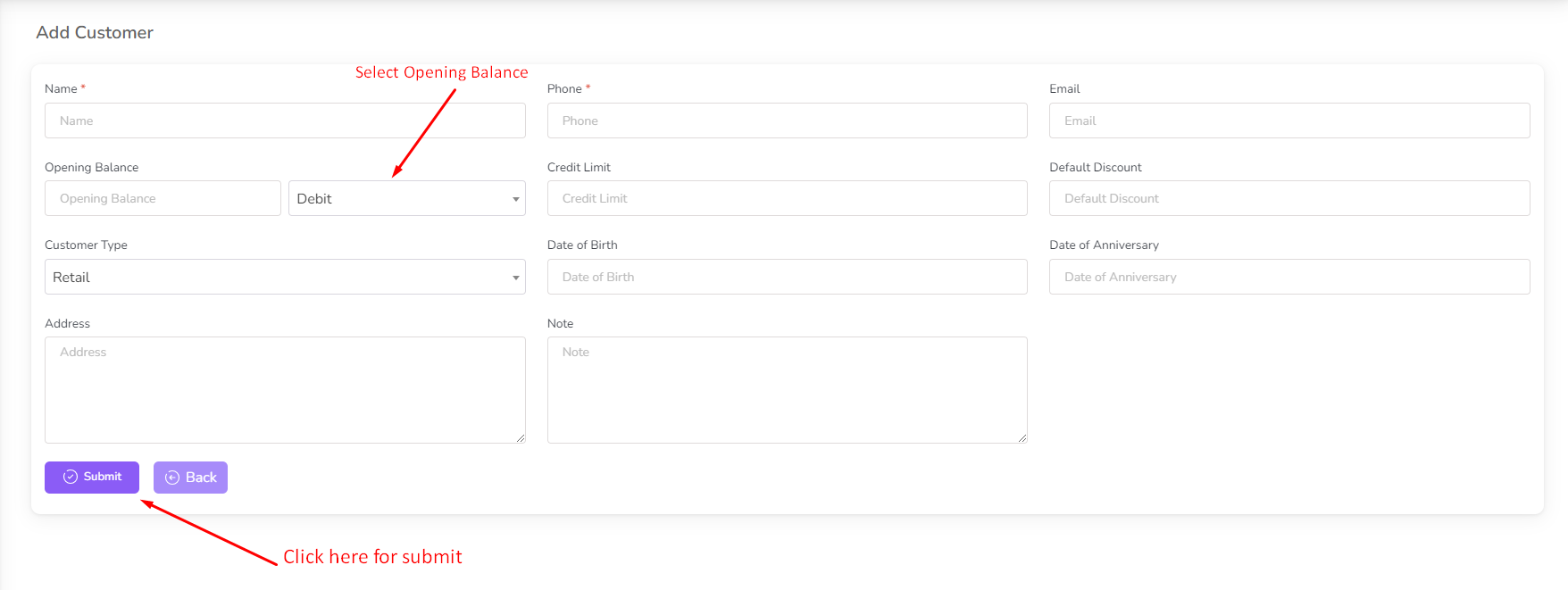
- Fill in the required customer details.
- Set the Opening Balance:
- Debit Balance: Amount given to the customer at the time of adding.
- Credit Balance: Amount the customer owes at the time of adding.
- (Optional) Set a Credit Limit to restrict the customer from exceeding it.
- Click Submit to add the customer.
Managing Customers
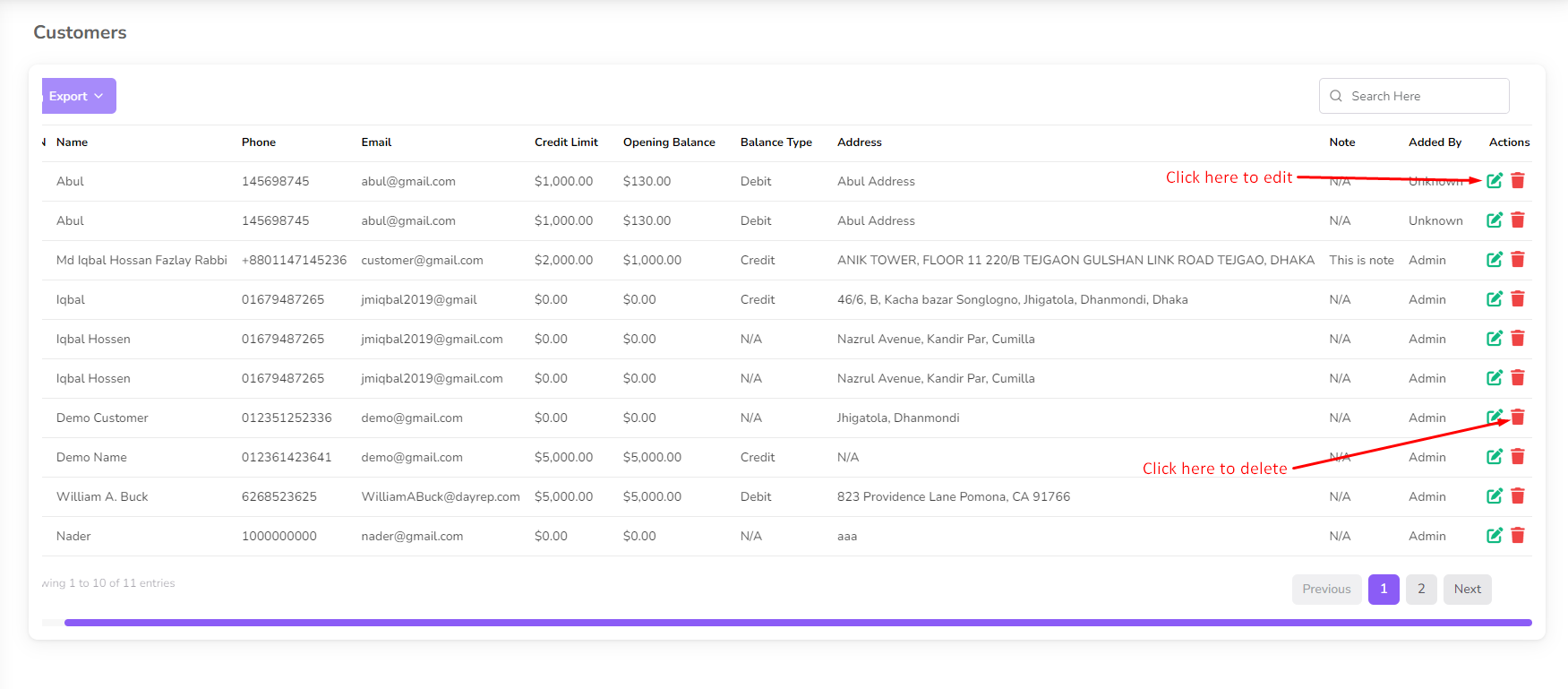
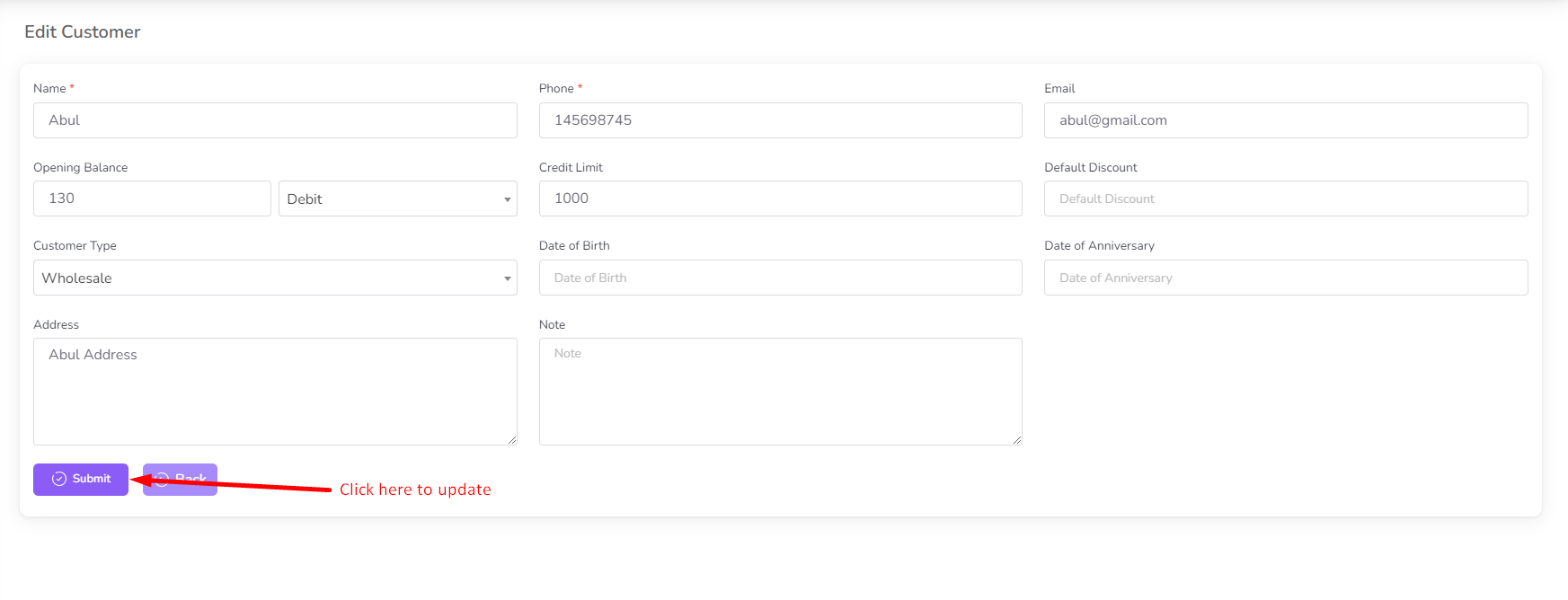
- Edit Customer: Click on the customer’s name, update details, and click Update.
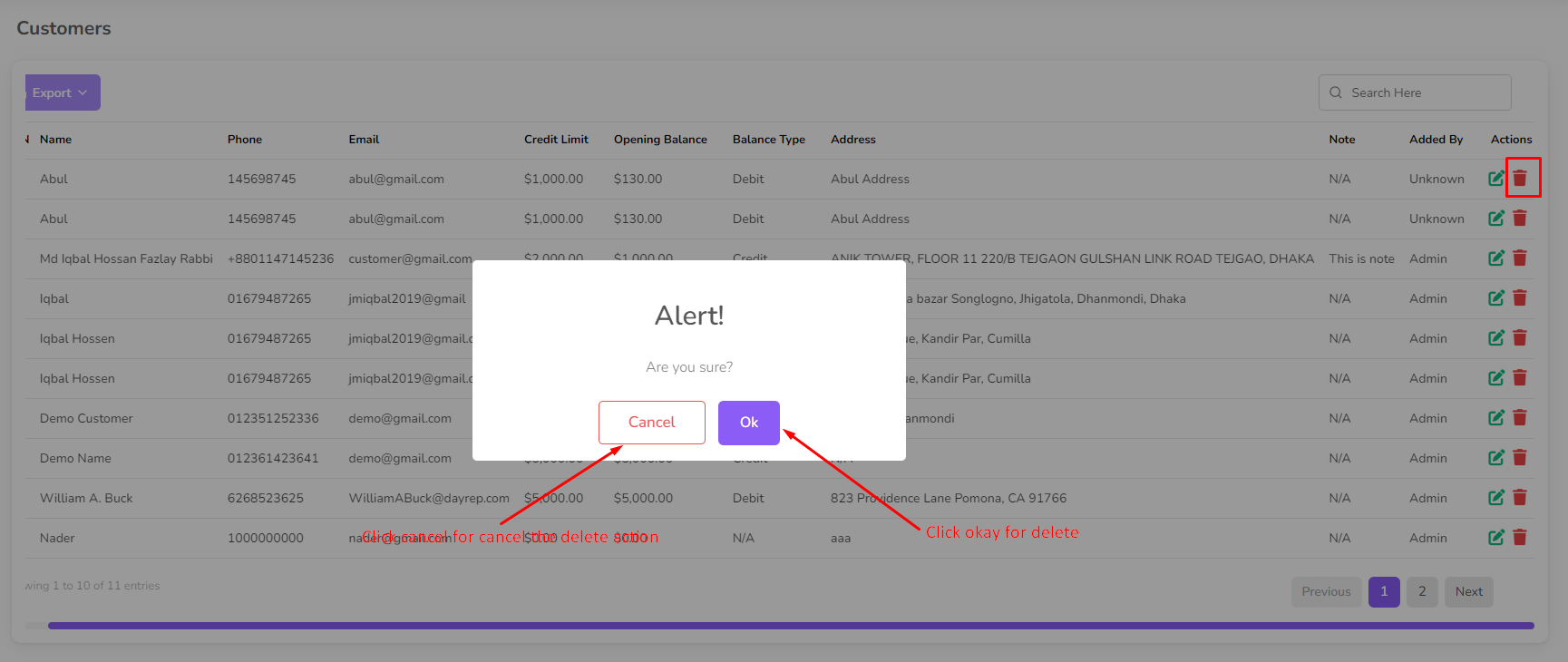
- Delete Customer: Click the Delete button next to their name.
Suppliers
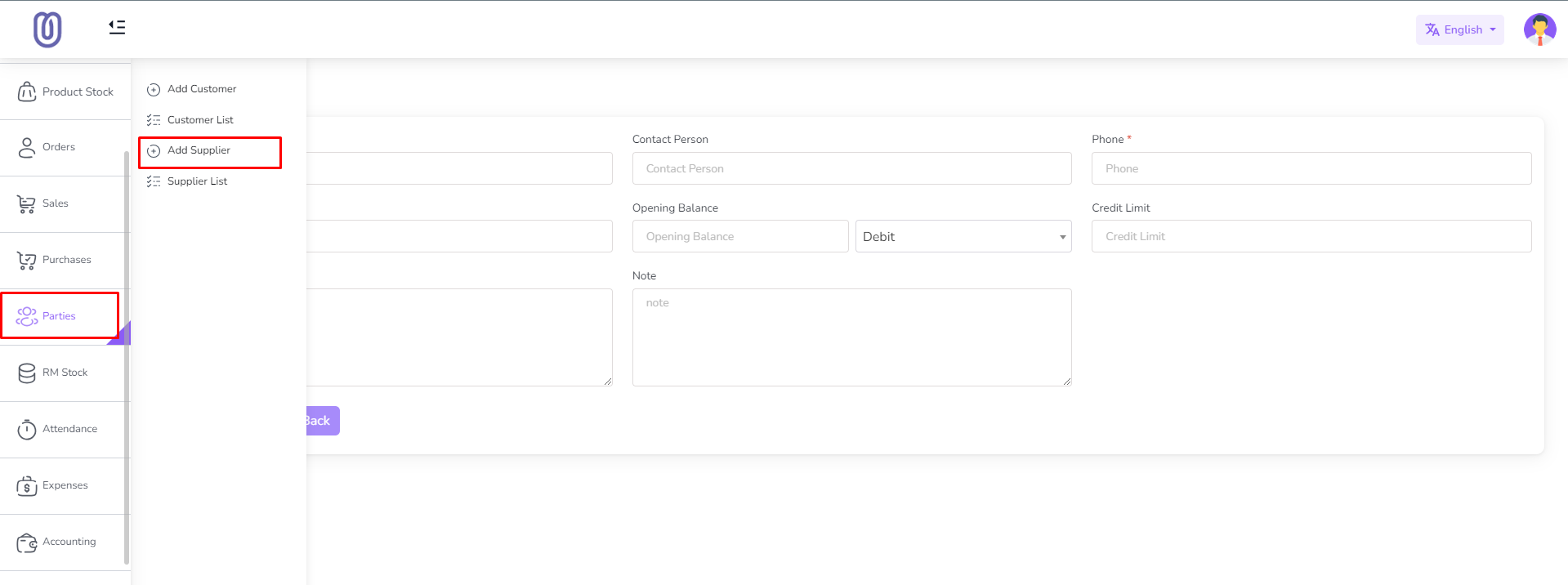
- Navigate to the Parties menu from the left sidebar.
- Click Add Supplier.
- Fill in the required supplier details.
- Set the Opening Balance:
- Debit Balance: Amount owed to the supplier at the time of adding.
- Credit Balance: Amount the supplier owes at the time of adding.
- (Optional) Set a Credit Limit to restrict the supplier’s maximum charge.
- Click Submit to add the supplier.
Managing Suppliers
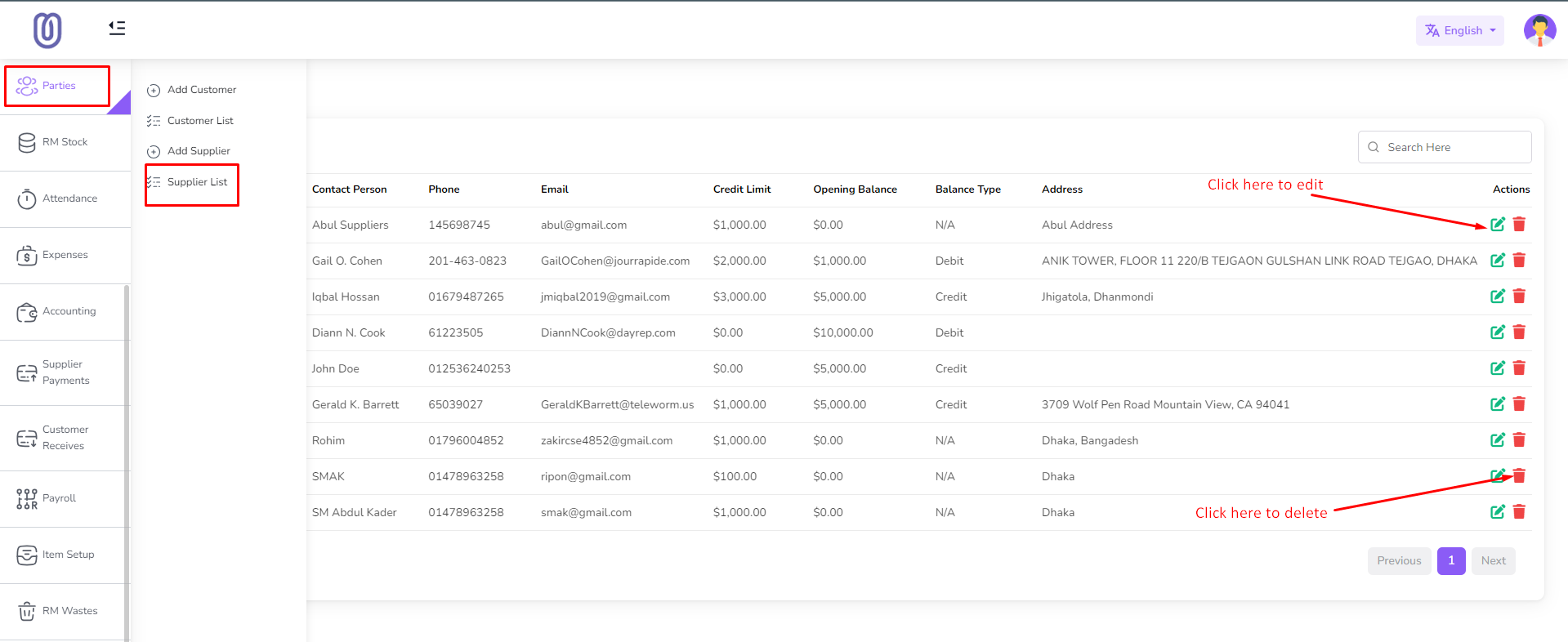
- Edit Supplier: Click on the supplier’s name, update details, and click Update.
- Delete Supplier: Click the Delete button next to their name.