Production Loss
Production loss is a feature that allows you to track and manage the loss of production. If there is any loss during production, you can record it in this section.
Adding Production Loss
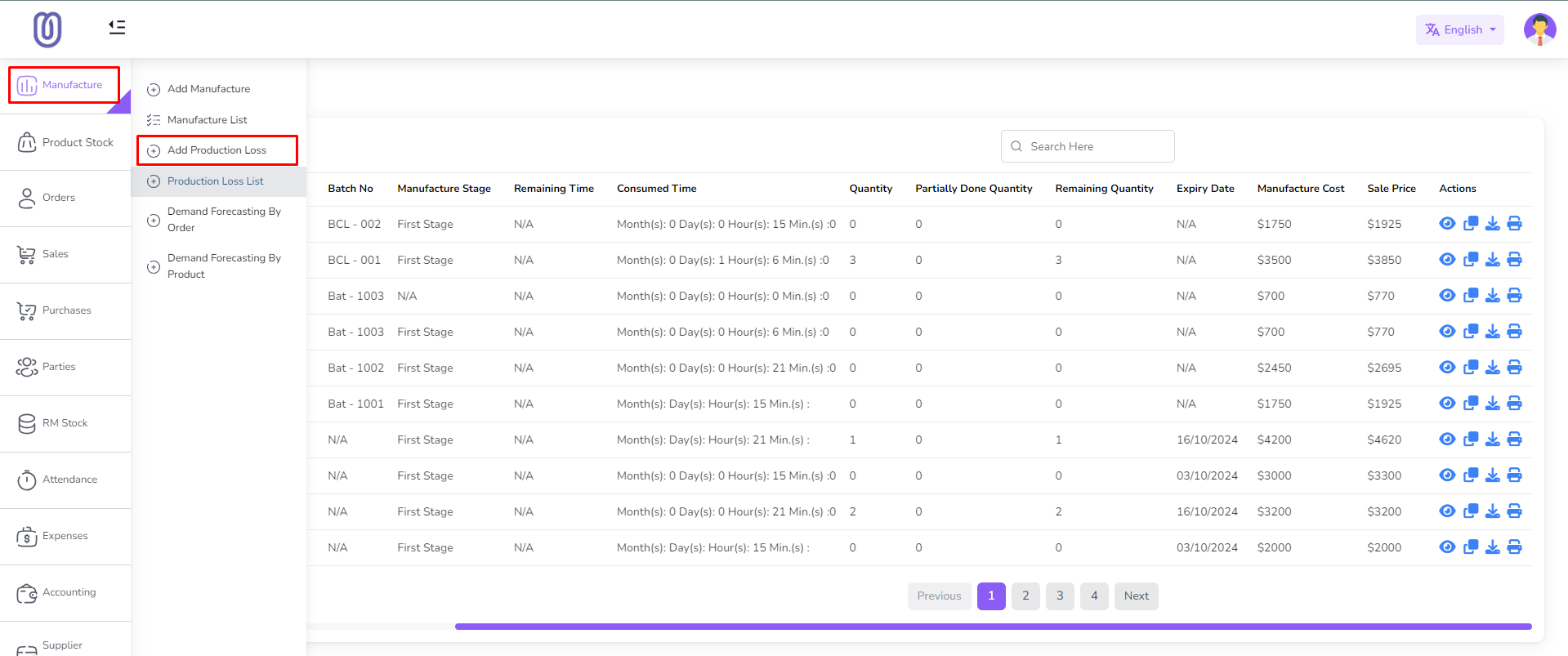
- Go to the Manufacture menu from the left sidebar.
- Click on Add Production Loss.
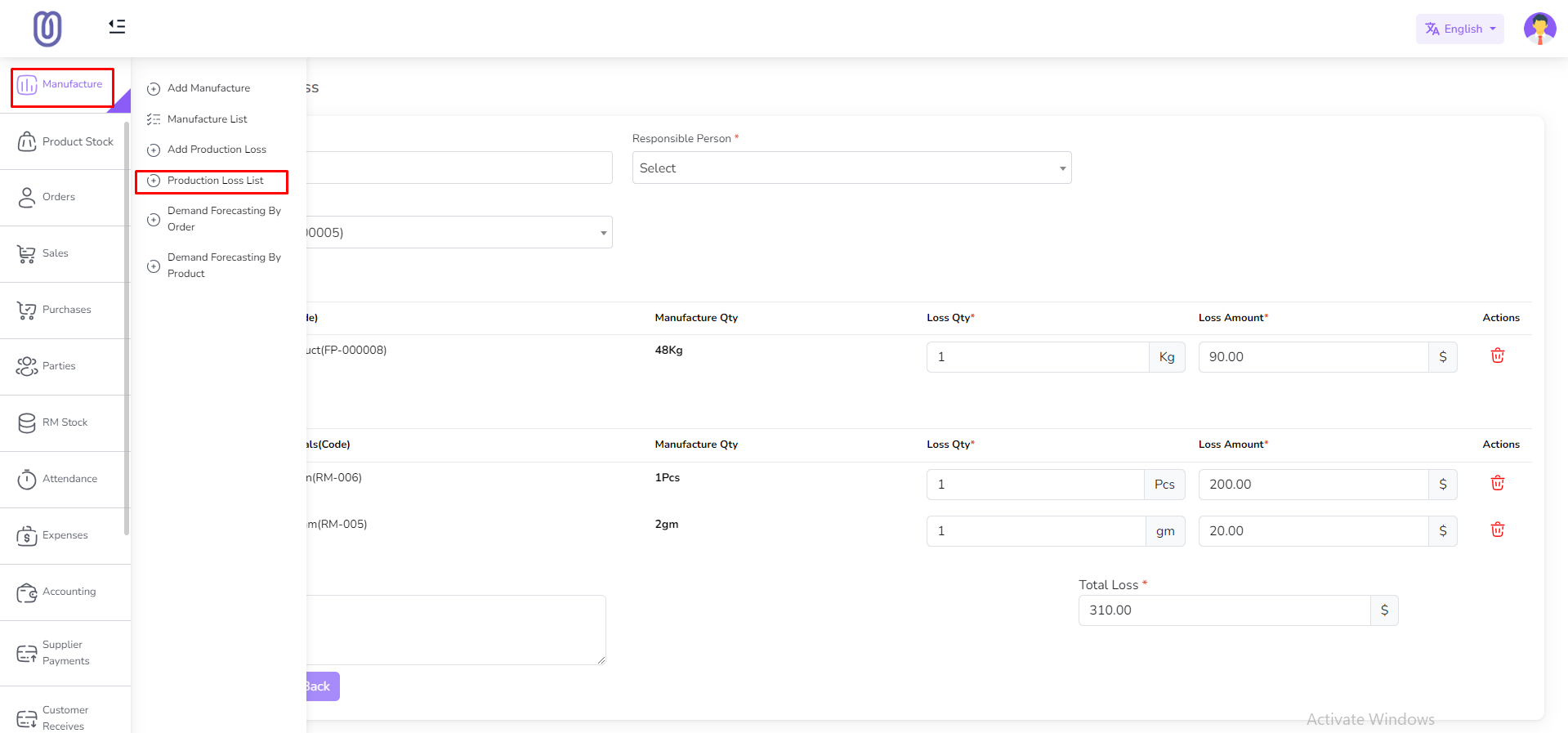
- A form will be displayed:
- Select a manufacturer from the dropdown. The associated product and raw materials will be shown.
- Adjust the quantity of raw materials and products as needed.
- Add a loss note.
- Note: The loss quantity cannot exceed the production quantity.
- Click Submit.
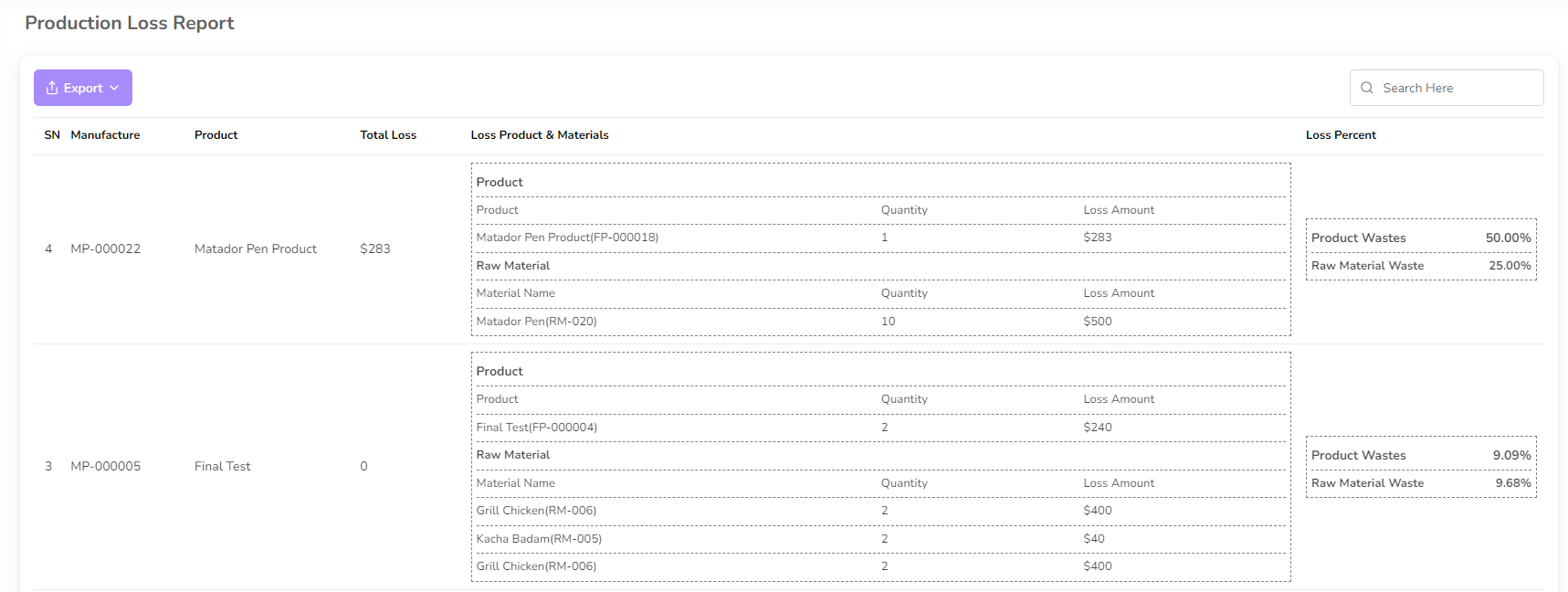
- Upon submission, the Production Loss Table will be updated, and you will be redirected to the Production Loss List page.
- You can also view the production loss list from the Production Loss List menu in the left sidebar.
- In the Production List, you can see the loss product, quantity, and loss percentage.
Demand Forecasting by Order
Demand forecasting by order allows you to estimate demand for products based on customer orders.
Forecasting Demand by Order
- Go to the Manufacture menu from the left sidebar.
- Click on Demand Forecasting by Order.
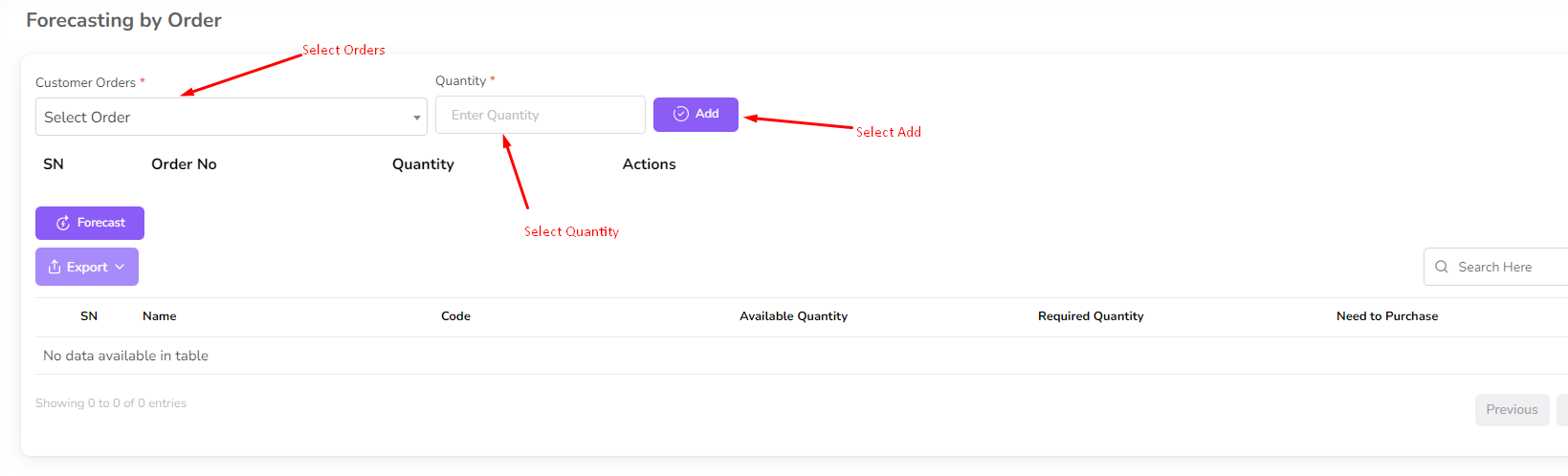
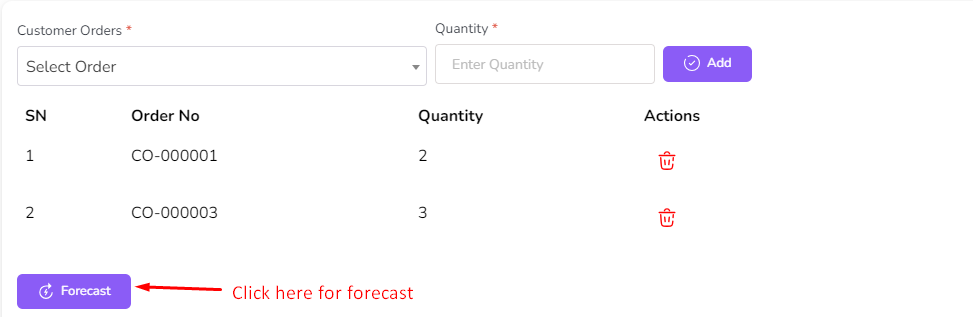
- Select an order from the dropdown.
- Enter the quantity and click Add.
- You can add multiple orders for forecasting.
- Click Forecast after adding all required orders.
- The Forecasting Table will be updated with the demand projection.
Demand Forecasting by Product
This feature enables demand forecasting for products based on historical sales data and other factors.
Forecasting Demand by Product
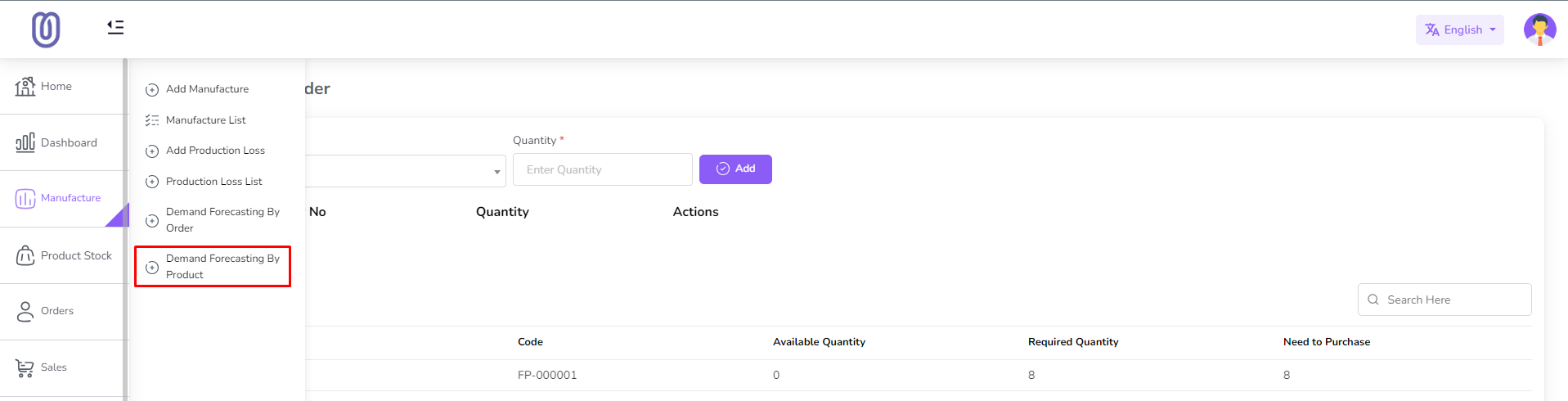
- Go to the Manufacture menu from the left sidebar.
- Click on Demand Forecasting by Product.
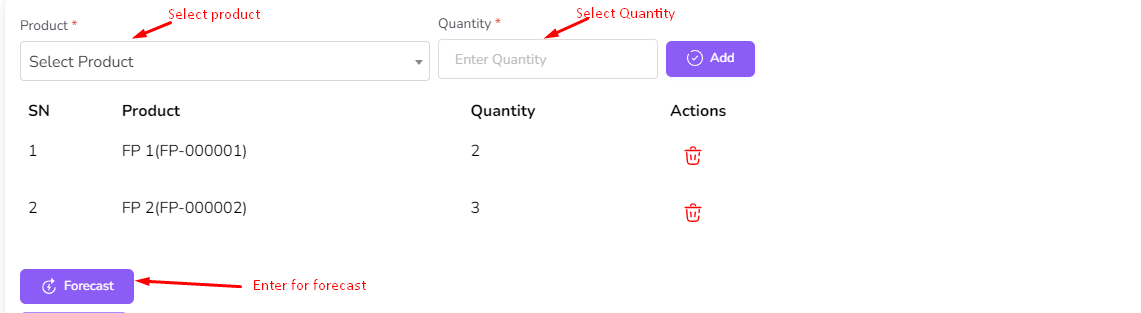
- Select a product from the dropdown.
- Enter the quantity to be forecasted.
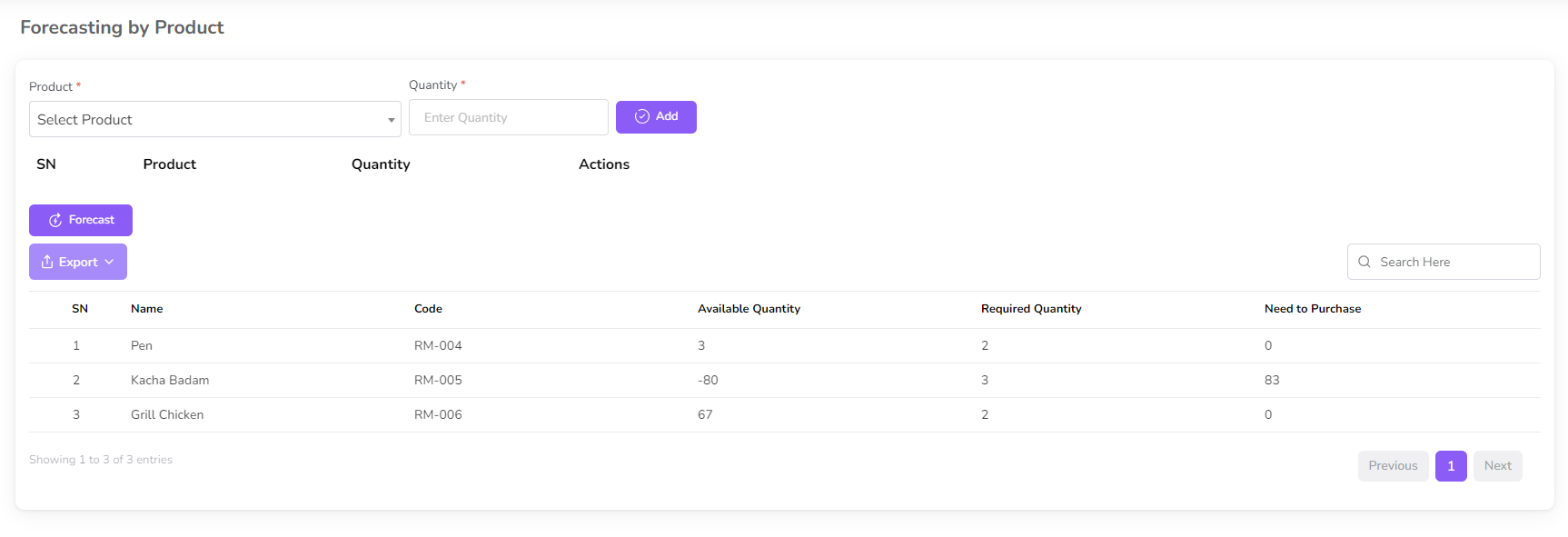
- Click Forecast. You can add multiple products for forecasting.
- The system will analyze historical sales data and other factors to provide a forecasted demand.
Product Stock
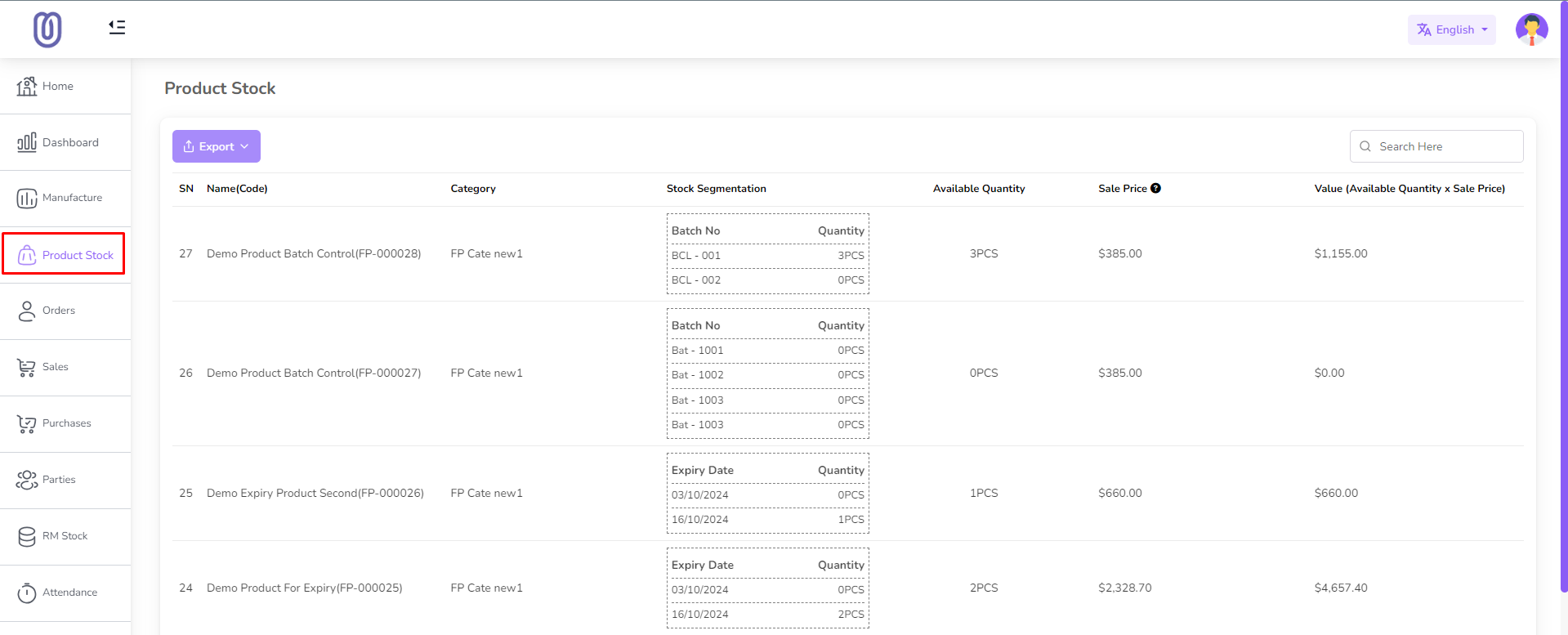
The Product Stock feature in the manufacturing software helps manage inventory effectively by tracking stock levels, stock movements, and optimizing inventory.
Managing Product Stock
- Go to the Product Stock menu from the left sidebar.
- The Product Stock Table provides segmentation:
- Stock details categorized by Batch Number and Expiry Date.
- Total available stock and total stock value.
Orders
The Orders feature allows management of customer orders, tracking order status, and inventory adjustments.
Adding Customer Orders
- Go to the Orders menu from the left sidebar.
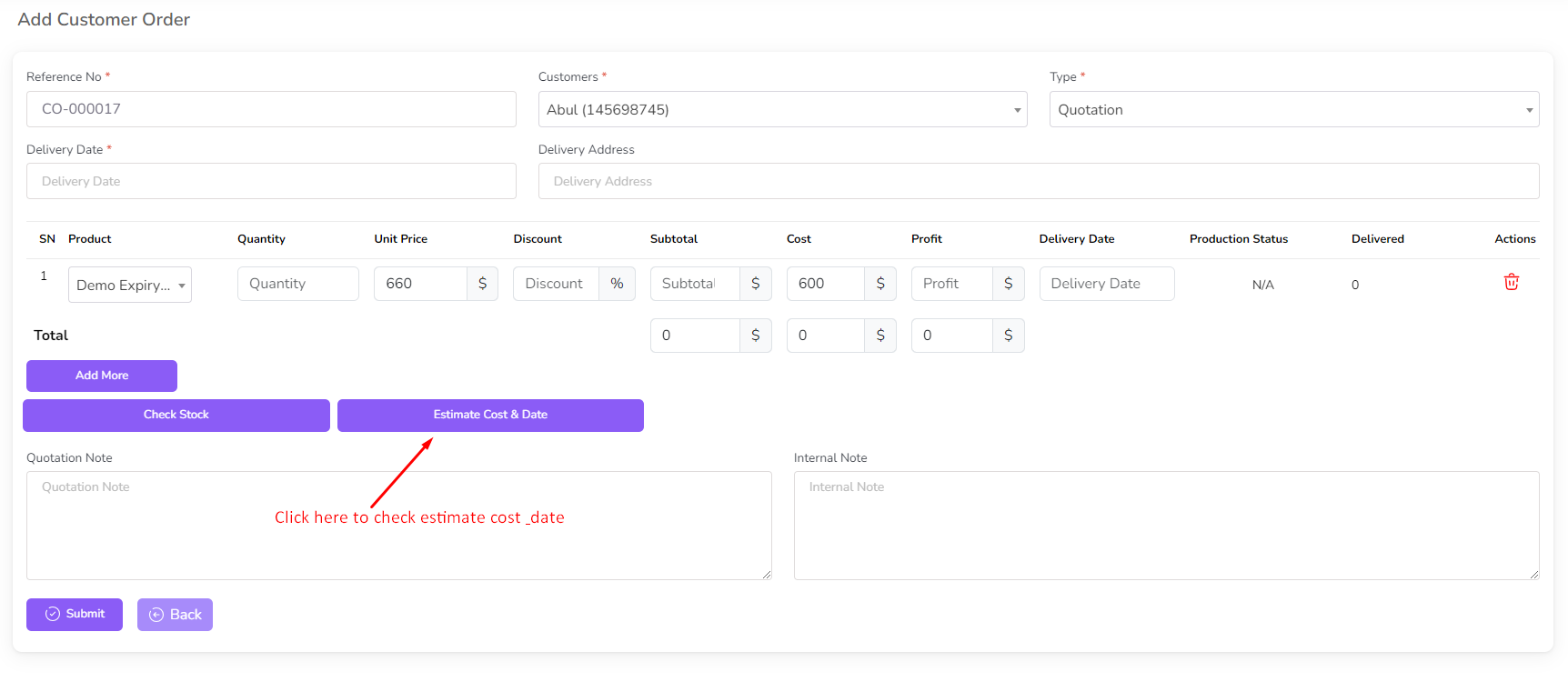
- Click on Add Order.
- Click Add More in the Order Item Table to add items.
- A form will populate with product details and rates.
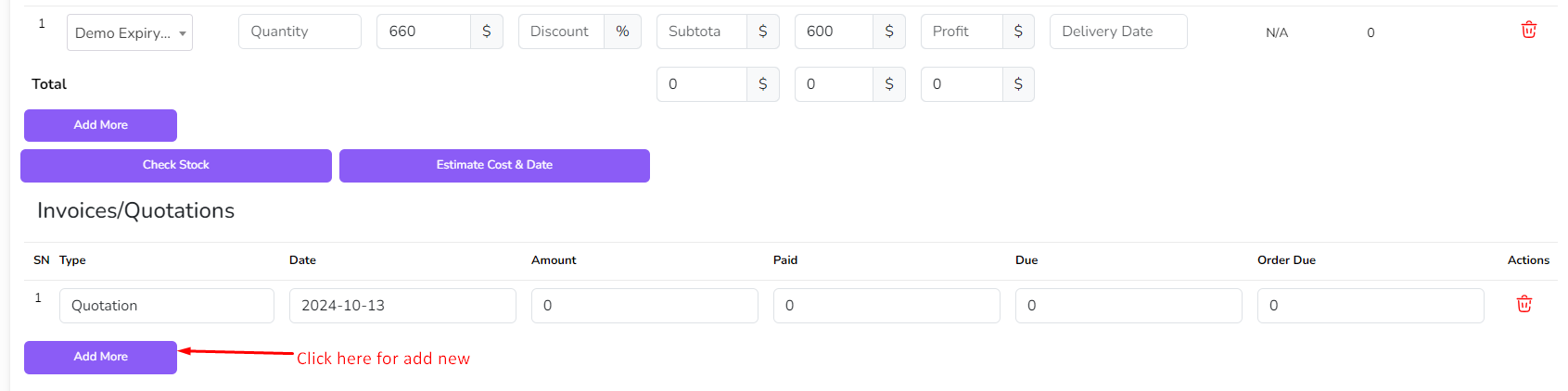
- If the order type is Work Order, you can add Invoices, Quotations, and Deliveries.
- If the order type is Quotation, Invoice and Deliveries options will be hidden.
- Add products to the order and check:
- Stock: Click Check Stock to open a modal with stock details.
- Estimated Cost and Date: Click Calculate Estimated Cost and Date.
- If the order type is Work Order, an Invoice/Quotation row is automatically added.
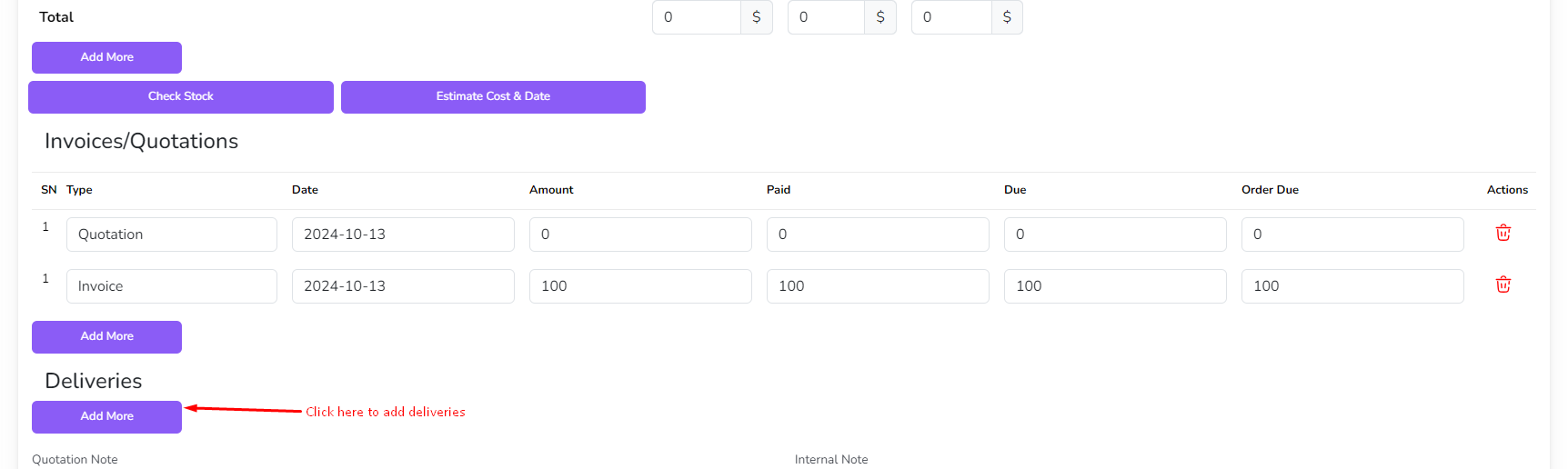
- Click Add More in the Invoice/Quotation table to add more invoices.
- Click Submit to update the Invoice/Quotation Table.
- Click Add More in the Deliveries Table to add a delivery challan.
- Click Submit to update the Deliveries Table.
- After submitting, you will be redirected to the Order List page.
Managing Orders
- View Order Details: Click the View icon in the action column.
- Download Order Details: Click the Download icon.
- Print Order Details: Click the Print icon.
- Edit Order: Click the Edit icon, modify the order, and click Submit.
- Delete Order: Click the Delete icon.
Sales
The Sales feature allows you to manage sales activities, track performance, and maintain customer relationships.
Adding Sales
- Go to the Sales menu from the left sidebar.
- Click on Add Sales.
- Select a product from the dropdown.
- The form will populate with the product rate.
- Enter the quantity.
- If the product is Batch Controlled, you can input quantity per batch.
- Note: If the product is expired, the stock will be automatically reduced based on expiry date.
- Click Submit to be redirected to the Sales List page.
Managing Sales
- Edit Sales: Click the Edit icon (not available if the sale status is Final).
- View Sales Details: Click the View icon.
- Print Challan: Click the Print icon.
- Download Challan: Click the Download icon.
- Download Invoice: Click the Download icon.
- Delete Sales: Click the Delete icon (not available if the sale status is Final).