The Expense Management module allows you to efficiently track and manage business expenses by categorizing, adding, editing, and deleting expenses.
Expense Category Management
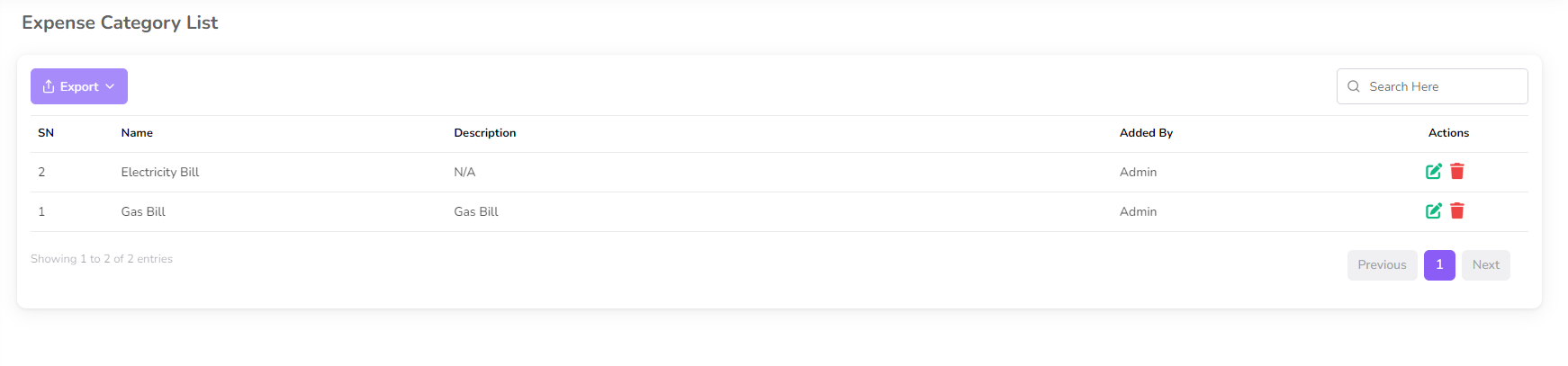
Expense categories help organize and classify business expenses.
Accessing Expense Categories
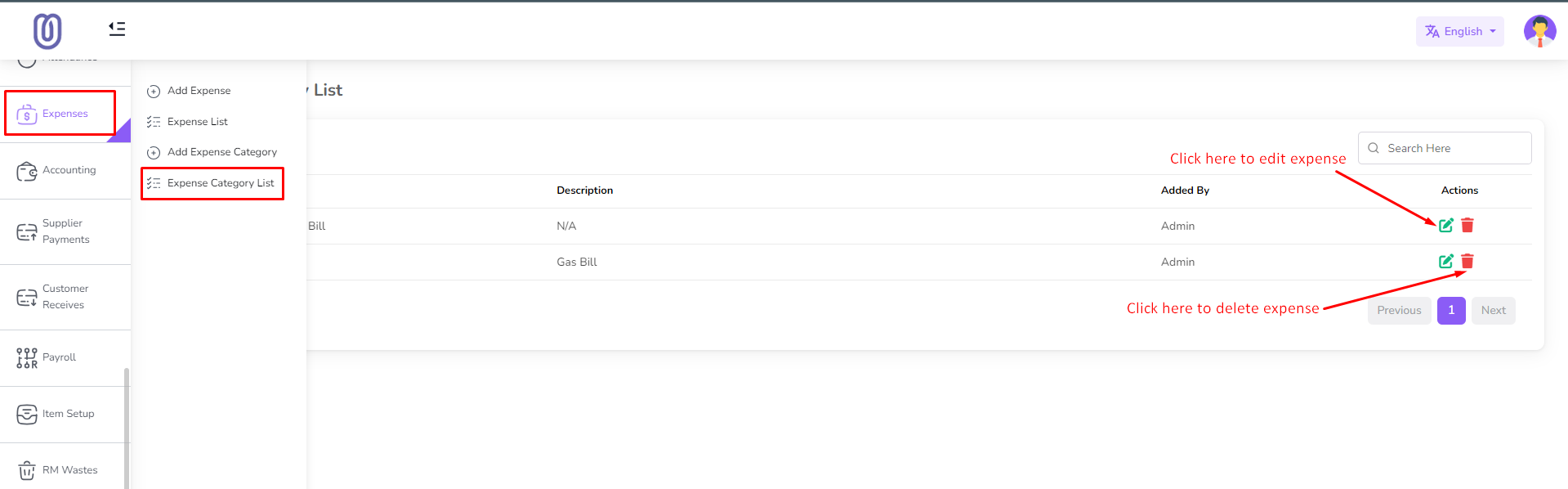
- Navigate to the Expense section from the left sidebar.
- Click on Expense Category List.
Adding an Expense Category
- Click on Add Expense Category from the left sub-menu.
- A form will open. Fill in the required details.
- Click Save to add the new category.
Editing an Expense Category
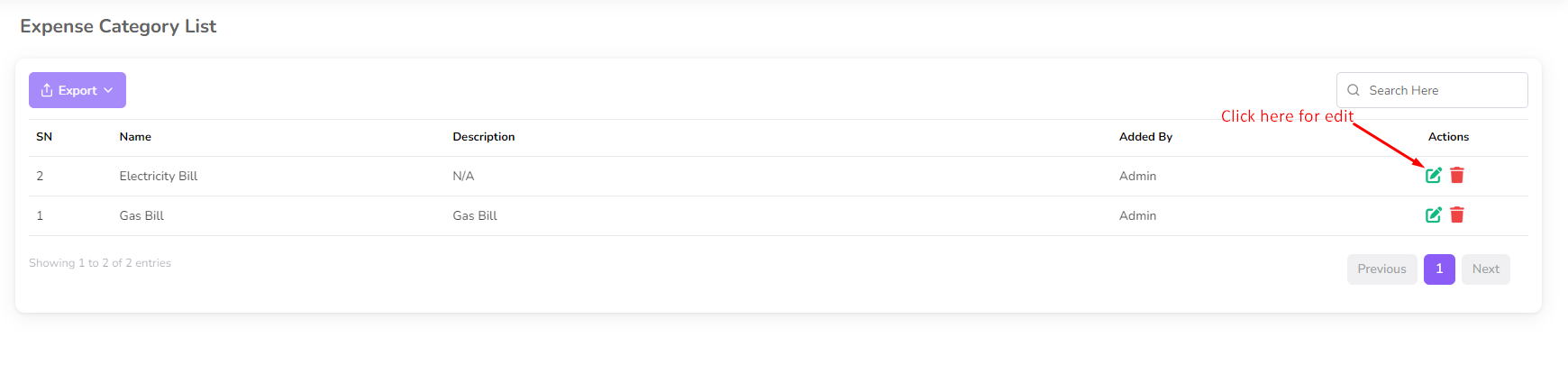
- Click on the Edit button next to the category you want to modify.
- A form with current details will open.
- Make the necessary changes and click Submit.
Deleting an Expense Category
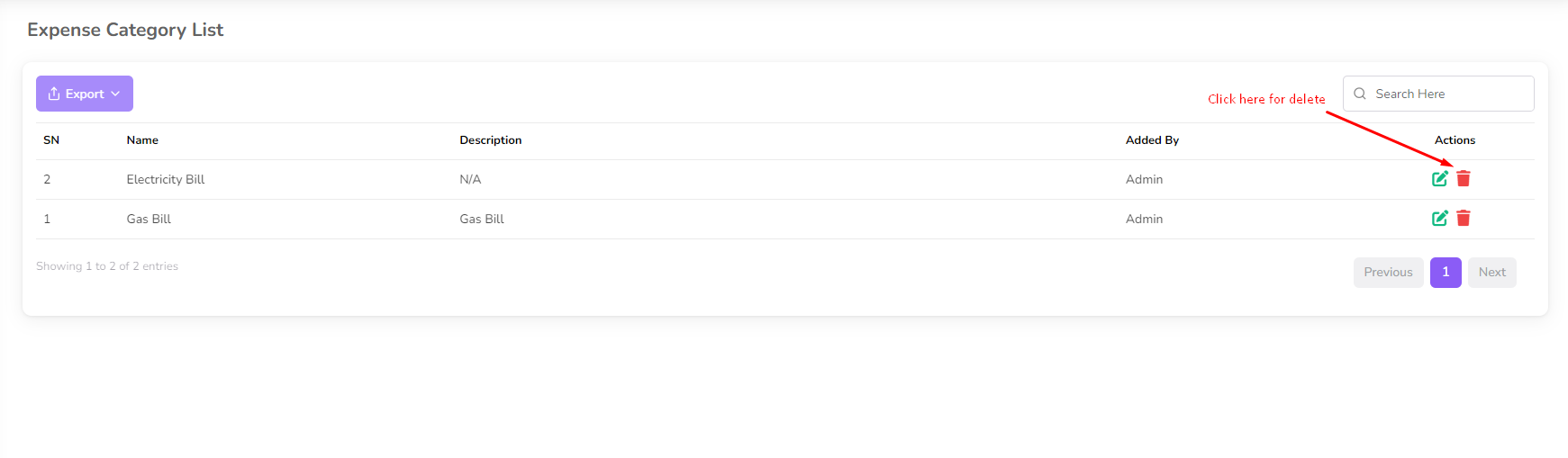
- Click on the Delete button next to the category.
- A confirmation dialog will appear.
- Confirm deletion to remove the category from the list.
Managing Expenses
You can add, edit, and delete expenses for accurate financial tracking.
Accessing Expense Management
- Navigate to the Expense section from the left sidebar.
- Click on Expense List.
Adding an Expense
- Click on Add Expense from the left sub-menu.
- A form will open. Fill in the details including:
- Date
- Category
- Description
- Amount
- Click Submit to add the expense.
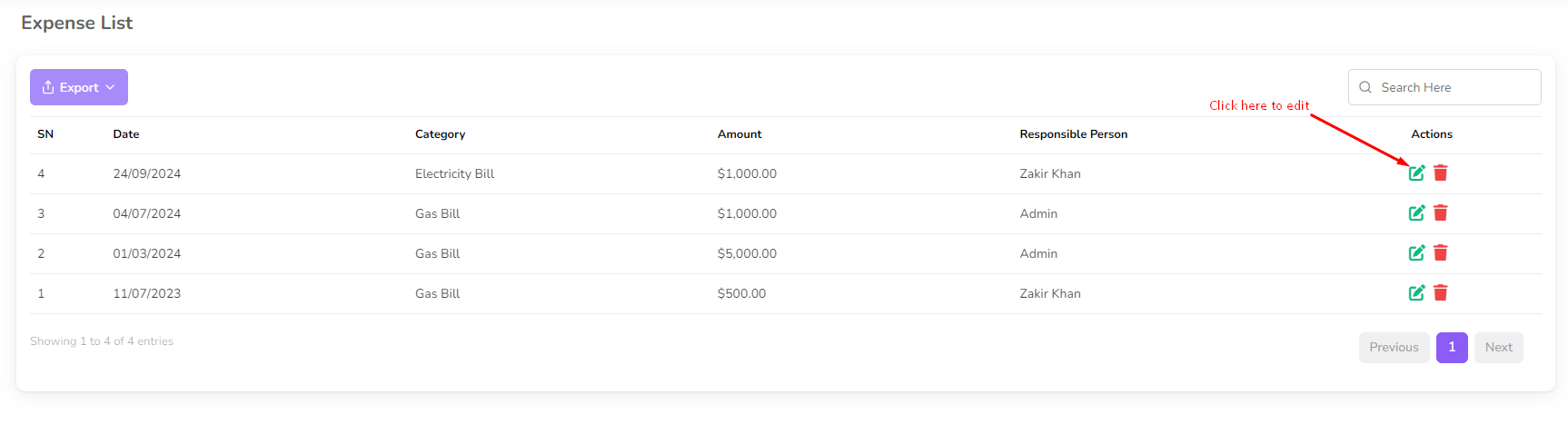
Editing an Expense
- Click on the Edit button next to the expense entry.
- A form with current details will open.
- Modify the details as needed and click Submit.
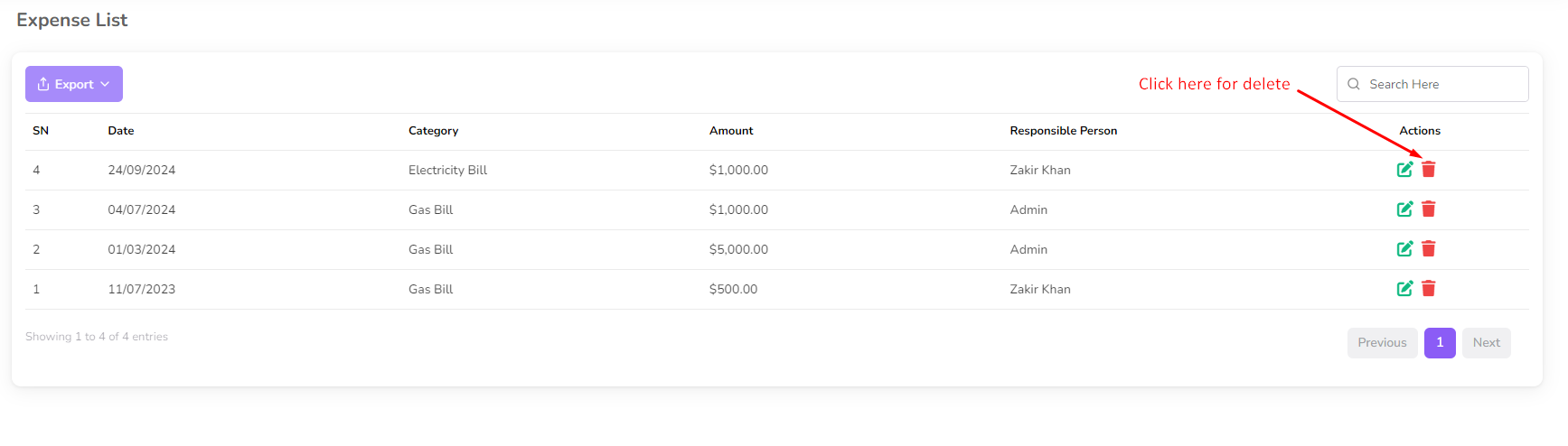
Deleting an Expense
- Click on the Delete button next to the expense entry.
- A confirmation dialog will appear.
- Confirm deletion to remove the expense from the list.
By following these steps, you can efficiently manage and track business expenses within BatchEdge.