Customer Received
The Customer Received module allows you to manage and track payments received from customers, view payment history, and generate reports.
Accessing Customer Received
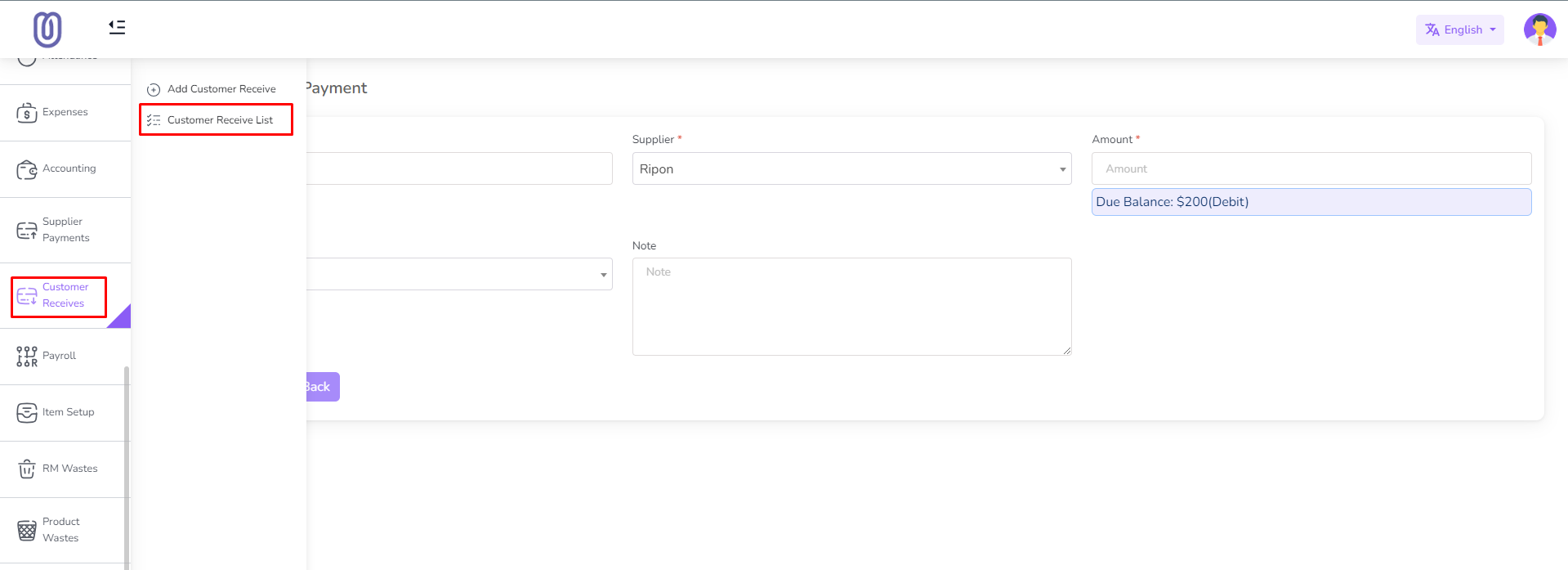
- Navigate to the Customer Received menu from the left sidebar.
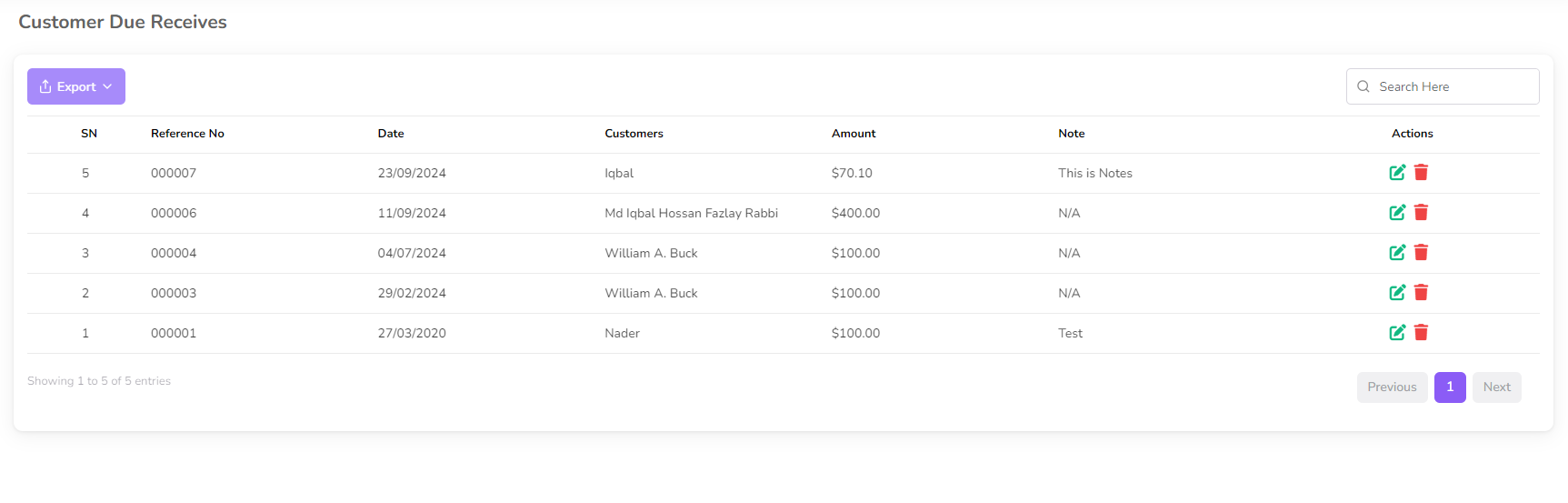
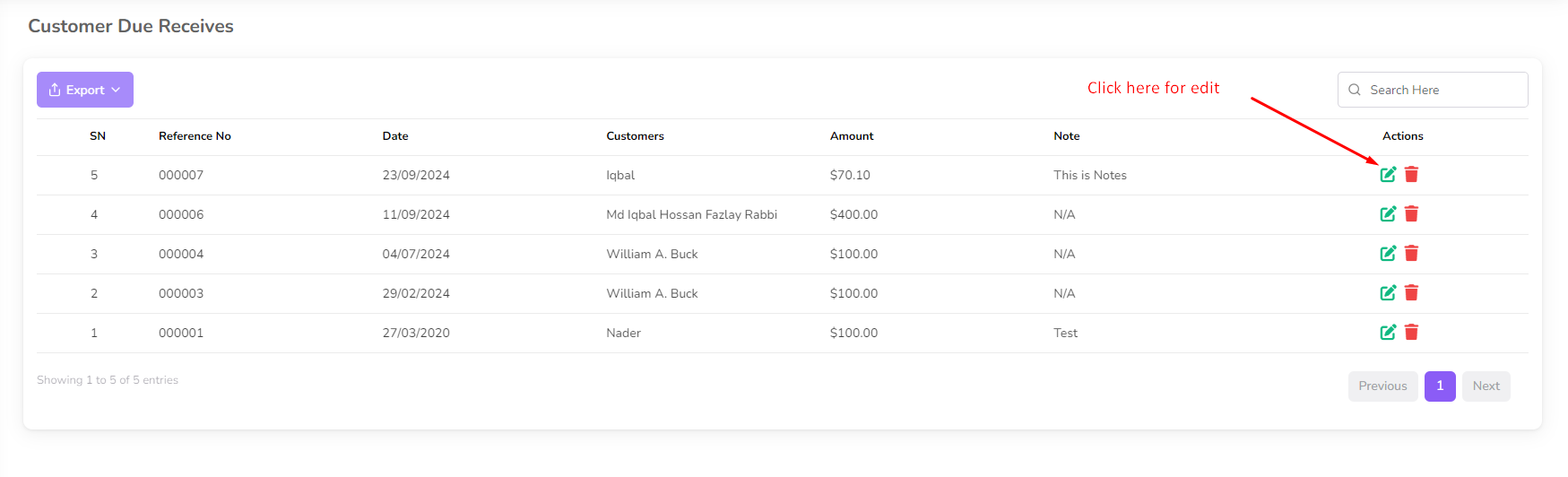
- The Customer Received page displays date, customer name, amount, and notes for each transaction.
Adding a Received Payment
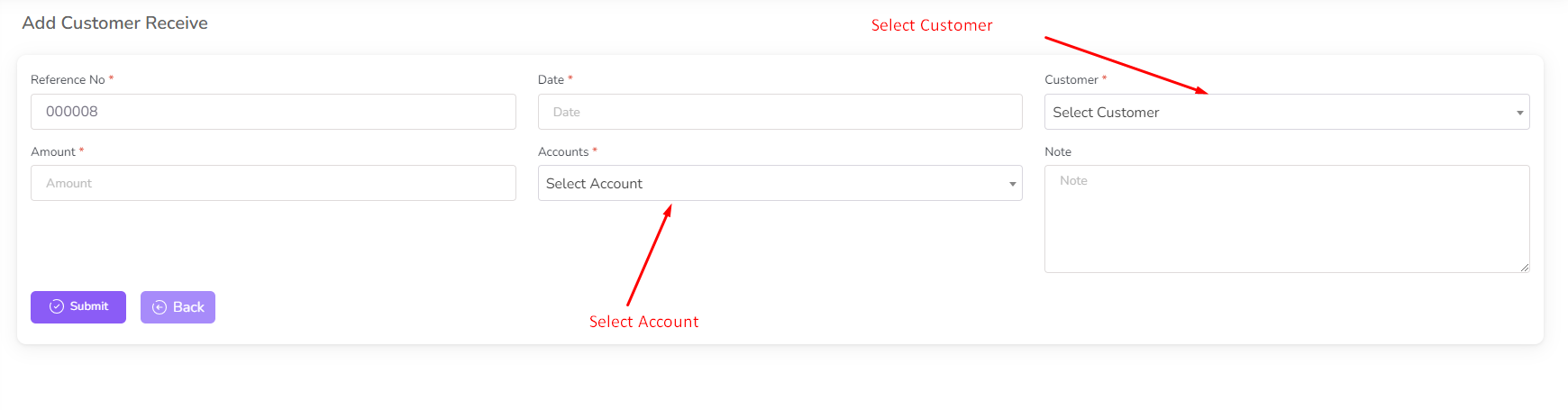
- Click on Add Customer Received from the left sub-menu.
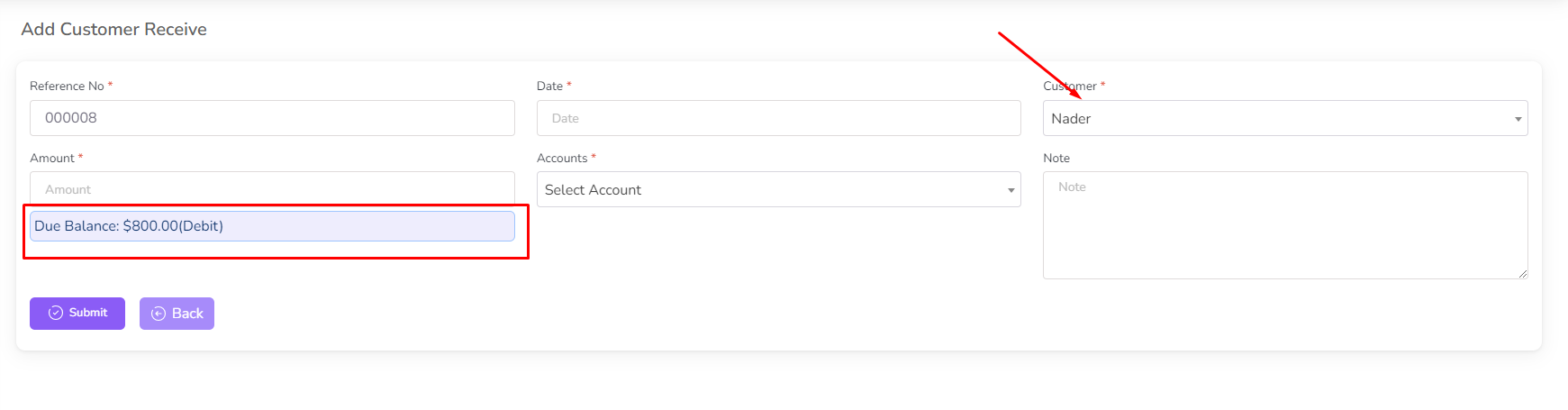
- Select a customer from the dropdown list. The system will display the customer's due balance.
- Enter the received payment details, including amount and payment date.
- Click Submit to complete the payment entry.
Editing a Received Payment
- Click on the Edit icon next to the payment you want to modify.
- Make the necessary changes.
- Click Submit to save the changes.
Deleting a Received Payment
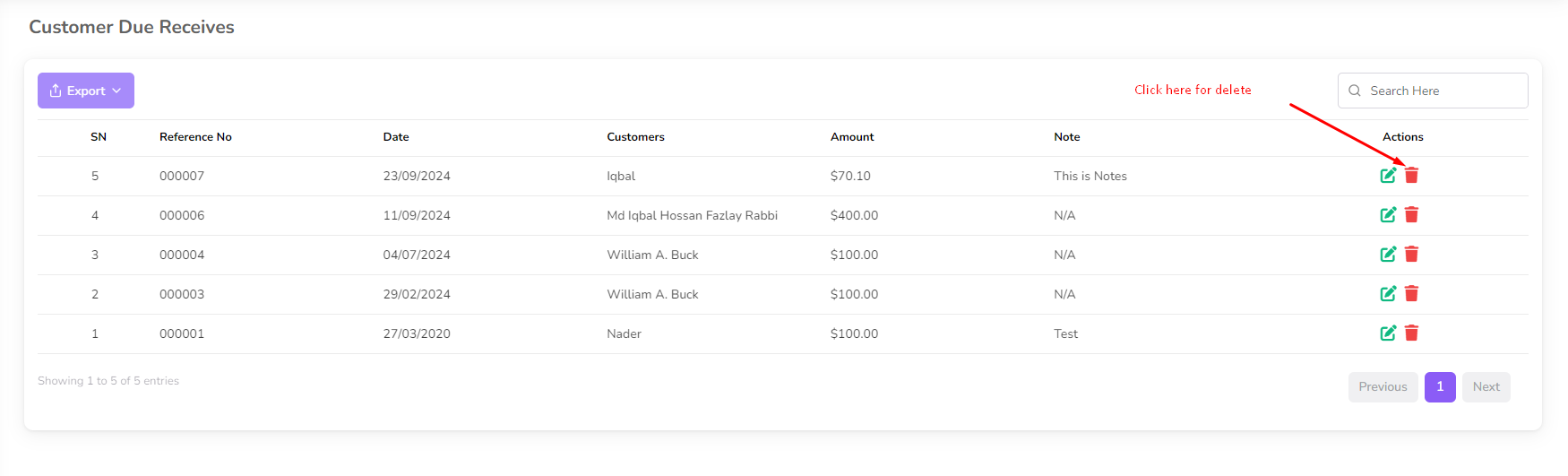
- Click on the Delete button next to the payment you want to remove.
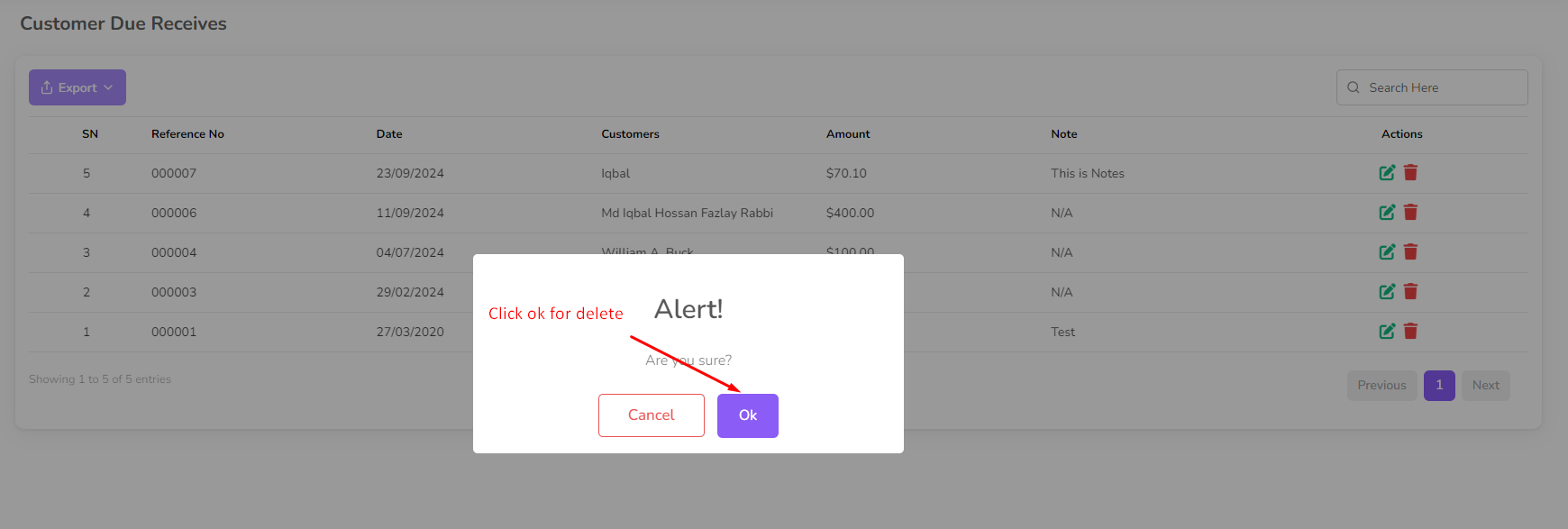
- A confirmation dialog will appear.
- Confirm deletion to remove the payment from the list.
By following these steps, you can efficiently manage received payments from customers within BatchEdge.